Return Processing Workflow
This walkthrough follows the complete process of handling a return, from customer request through resolution completion. Understanding this workflow ensures proper handling of returns while maintaining accurate inventory and accounting.
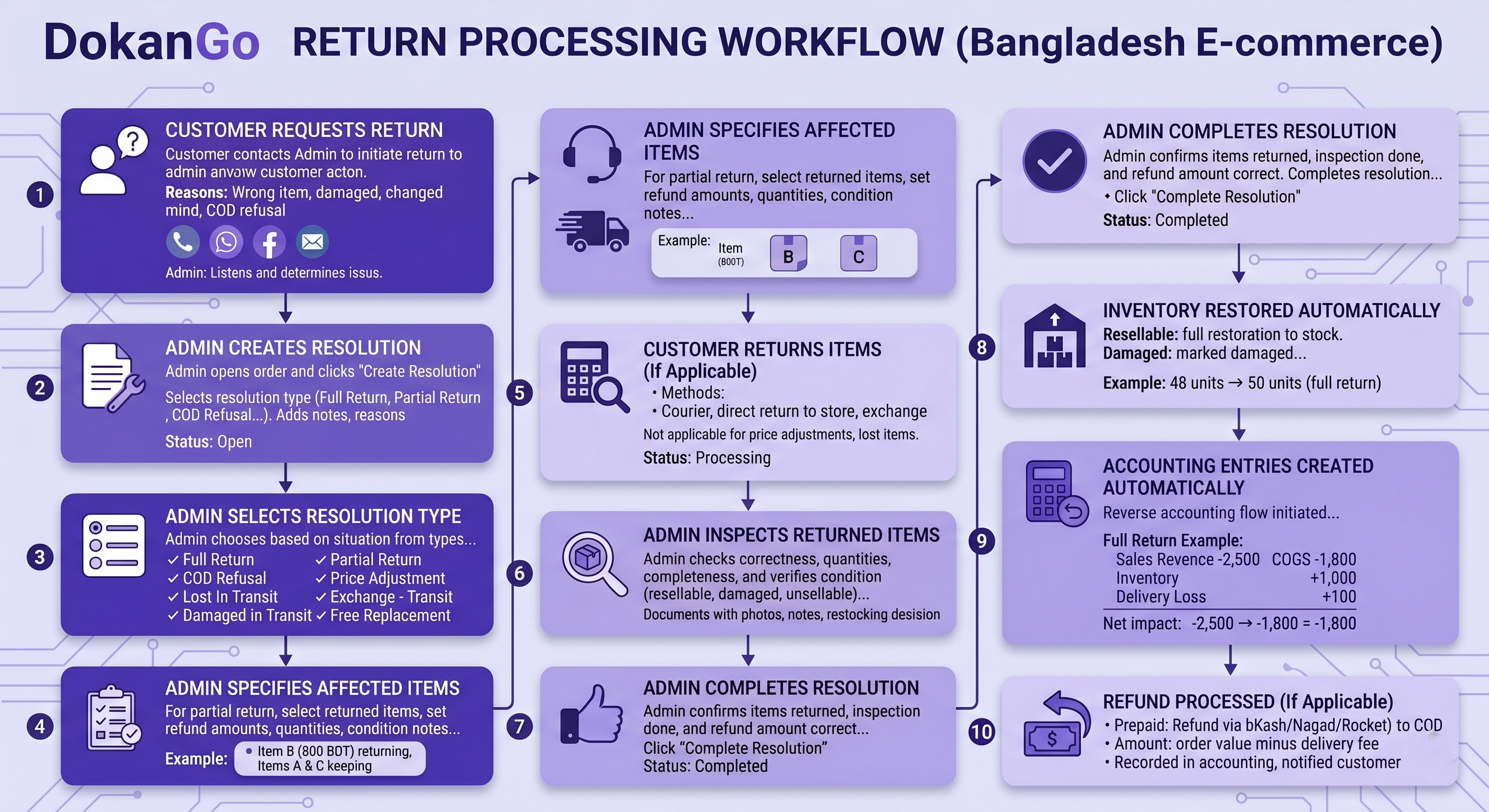
Step 1: Customer Requests Return
A customer contacts you to return an order or report an issue.
Common Reasons:
- Product doesn't match expectations
- Wrong size or color received
- Product arrived damaged
- Customer changed mind
- Delivery took too long
- COD refusal at delivery
Customer Contact Methods:
- Phone call
- WhatsApp message
- Facebook message
- Through courier (COD refusal)
Initial Response:
- Listen to customer's concern
- Ask clarifying questions
- Determine what happened
- Decide on appropriate resolution
Step 2: Admin Creates Resolution
The admin opens the order and creates a resolution to document the issue.
Creating Resolution:
-
Admin opens the order in DokanGo
-
Admin clicks "Create Resolution"
-
Admin selects appropriate resolution type:
- Full Return
- Partial Return
- COD Refusal
- Price Adjustment
- Partial Delivery
- Exchange
- Lost in Transit
- Damaged in Transit
- Free Replacement
- COD Discrepancy
- Admin Cancel Post-Ship
-
Admin specifies details:
- Which items are affected (if partial)
- Adjustment amounts (if applicable)
- Reason for resolution
- Customer's explanation
-
Admin adds notes:
- Customer's complaint
- Agreed solution
- Special circumstances
- Follow-up actions needed
-
Admin submits resolution
Resolution Status: Open
- Resolution is created
- Investigation phase begins
- No changes to inventory or accounting yet
Step 3: Admin Selects Resolution Type
The admin chooses the resolution type that matches the situation.
Decision Guide:
Full Return:
- Customer returns entire order
- All items come back
Partial Return:
- Customer returns some items, keeps others
- Mixed satisfaction
COD Refusal:
- Customer refused delivery at door
- COD order only
Price Adjustment:
- Customer keeps items but negotiates lower price
- Goodwill discount
Partial Delivery:
- Courier delivered only some items
- Others lost or unavailable
Exchange:
- Customer wants different variant
- Wrong size/color received
Lost in Transit:
- Courier lost the package
- Never reached customer
Damaged in Transit:
- Items arrived damaged
- Courier mishandling
Free Replacement:
- Sending replacement as goodwill
- Customer keeps original
COD Discrepancy:
- Courier collected wrong amount
- Payment mismatch
Admin Cancel Post-Ship:
- Admin cancels after shipping
- Fraud detected or error found
Step 4: Admin Specifies Affected Items
For partial returns or specific item issues, the admin specifies which items are affected.
Item Selection:
-
Admin views all items in the order
-
Admin selects affected items:
- Check boxes for returned items
- Specify quantities (if partial quantity)
- Note condition (resellable or damaged)
-
Admin enters adjustment amounts:
- Refund amount per item
- Price adjustments
- Delivery fee handling
Example - Partial Return:
Original Order:
  Item A: 1,000 BDT (keeping)
  Item B: 800 BDT (returning)
  Item C: 500 BDT (keeping)
  Delivery: 100 BDT

Resolution:
  Affected Item: Item B
  Refund Amount: 800 BDT
  Delivery Loss: 100 BDT (not refunded)
  Customer Receives: 800 BDT refund
Step 5: Customer Returns Items (If Applicable)
For returns that require physical items to come back, the customer sends items back.
Return Methods:
Via Courier:
- Customer hands items to courier
- Courier returns to merchant
- Tracking code provided
Direct Return:
- Customer brings items to store/office
- Immediate inspection possible
- Faster resolution
Exchange:
- Customer returns wrong item
- Merchant sends correct item
- May happen simultaneously
Not Applicable For:
- Price adjustments (customer keeps items)
- COD refusals (courier brings items back)
- Lost in transit (items are lost)
Resolution Status: Processing
- Awaiting physical return
- Items in transit back to merchant
- Refund pending inspection
Step 6: Admin Inspects Returned Items
When items arrive back, the admin inspects their condition.
Inspection Process:
-
Verify Items:
- Correct items returned
- Quantities match resolution
- All components included
-
Check Condition:
- Packaging intact or damaged
- Product condition (new, used, damaged)
- Resellable or not resellable
- Signs of use or wear
-
Document Findings:
- Take photos if needed
- Note condition in resolution
- Determine restocking decision
Condition Categories:
Resellable:
- Perfect condition
- Original packaging intact
- No signs of use
- Can be sold as new
- Full inventory restoration
Damaged:
- Visible damage
- Packaging damaged
- Shows signs of use
- Cannot be sold as new
- Partial or no inventory restoration
Unsellable:
- Severely damaged
- Missing components
- Unusable condition
- Write off as loss
- No inventory restoration
Step 7: Admin Completes Resolution
After inspection and decision-making, the admin completes the resolution.
Completion Process:
-
Admin opens the resolution
-
Admin confirms:
- Items have been returned (if applicable)
- Inspection is complete
- Refund amount is correct
- Inventory restoration decision is made
-
Admin clicks "Complete Resolution"
-
System prompts for confirmation
-
Admin confirms completion
Resolution Status: Completed
- Resolution is finalized
- All actions are executed
- Audit trail is complete
Step 8: Inventory Restored Automatically
When the resolution is completed, inventory is automatically adjusted.
Automatic Inventory Actions:
For Full Return (Resellable):
All items restored to inventory
Stock increases by returned quantities
Items available for sale again
For Partial Return (Resellable):
Only returned items restored
Kept items remain sold
Stock increases by returned quantities only
For Damaged Returns:
Items marked as damaged inventory
Not added to sellable stock
May be written off or sold at discount
For Lost in Transit:
No inventory restoration
Items are lost
Inventory value written off
Example:
Original Order:
  Product A: 2 units sold
  Starting inventory: 48 units

Full Return (Resellable):
  Product A: 2 units restored
  New inventory: 50 units
  Available for sale: 50 units

Partial Return (1 unit damaged):
  Product A: 1 unit restored (resellable)
  Product A: 1 unit damaged (not resellable)
  New inventory: 49 units
  Available for sale: 49 units
  Damaged stock: 1 unit
Step 9: Accounting Entries Created Automatically
The system automatically creates accounting entries to reflect the resolution.
Automatic Accounting Actions:
For Full Return:
Sales Revenue: -2,500 BDT (reversed)
COGS: -1,800 BDT (reversed)
Inventory: +1,800 BDT (restored)
Delivery Loss: +100 BDT (expense)
Cash: -2,500 BDT (refund to customer)

Net Impact: -100 BDT (delivery loss)
For Partial Return:
Sales Revenue: -800 BDT (partial reversal)
COGS: -500 BDT (partial reversal)
Inventory: +500 BDT (partial restoration)
Delivery Loss: +100 BDT (full delivery fee lost)
Cash: -800 BDT (partial refund)

Net Impact: -400 BDT (delivery loss + profit loss on returned item)
For Price Adjustment:
Sales Revenue: -300 BDT (discount given)
COGS: No change (items were delivered)
Inventory: No change (items were kept)
Delivery Loss: No change (delivery completed)

Net Impact: -300 BDT (reduced profit)
For Lost in Transit:
Sales Revenue: -2,500 BDT (reversed)
COGS: -1,800 BDT (but items lost, not recovered)
Inventory: No change (items lost)
Delivery Loss: +100 BDT (expense)
Courier Compensation: +500 BDT (if applicable)

Net Impact: -1,400 BDT (lost inventory + delivery - compensation)
Step 10: Refund Processed (If Applicable)
For resolutions requiring refunds, the admin processes the refund to the customer.
Refund Methods:
For Prepaid Orders:
- Refund via same payment method
- bKash/Nagad/Rocket refund
- Process through mobile wallet
- Provide transaction ID to customer
For COD Orders:
- No refund needed (customer never paid)
- Or partial refund if partial delivery
Refund Amounts:
Full Return:
- Full order amount refunded
- Delivery fee NOT refunded (lost)
Partial Return:
- Returned items' value refunded
- Kept items' value not refunded
- Delivery fee NOT refunded
Price Adjustment:
- Discount amount refunded
- Customer keeps items
Refund Tracking:
- Refund recorded in accounting
- Cash account decreases
- Refund visible in order history
- Customer notified of refund
Workflow Complete
The return has been successfully processed from request to completion.
Key Outcomes:
For Customer:
- Issue resolved satisfactorily
- Refund received (if applicable)
- Replacement sent (if applicable)
- Maintained relationship with merchant
For Merchant:
- Return documented properly
- Inventory accurately updated
- Accounting correctly adjusted
- Audit trail complete
- Learned from the issue
For System:
- All data is accurate
- Inventory is current
- Accounting is balanced
- Profitability correctly calculated
Best Practices
Respond Quickly - Address return requests promptly to maintain customer satisfaction.
Choose Correct Resolution Type - Accurate categorization ensures proper accounting and inventory handling.
Document Thoroughly - Add detailed notes explaining what happened and why.
Inspect Carefully - Check returned items before completing resolution.
Communicate Clearly - Keep customer informed throughout the process.
Process Refunds Promptly - Don't delay refunds once resolution is complete.
Learn from Returns - Analyze return patterns to identify product or service issues.
Be Fair - Balance customer satisfaction with business protection.
Track Delivery Losses - Monitor return rates and delivery losses to identify problems.
Use Fraud Check - Prevent returns by checking customer history before shipping.
Common Scenarios
Scenario 1: Customer Unhappy with Product Quality
- Customer calls saying product quality is poor
- Admin creates "Full Return" resolution
- Customer returns items via courier
- Admin inspects: items are fine, customer expectations were unrealistic
- Admin completes resolution, marks items as resellable
- Items restored to inventory
- Full refund processed (minus delivery fee)
- Admin notes to improve product descriptions
Scenario 2: Wrong Size Delivered
- Customer received Size M, ordered Size L
- Admin creates "Exchange" resolution
- Admin sends Size L to customer
- Customer returns Size M
- Admin inspects: Size M in perfect condition
- Admin completes resolution
- Size M restored to inventory, Size L removed
- Additional delivery fee recorded as expense
Scenario 3: COD Refusal
- Courier reports customer refused delivery
- Admin creates "COD Refusal" resolution
- Courier returns items to merchant
- Admin inspects: items in good condition
- Admin completes resolution
- Items restored to inventory
- Delivery fee recorded as loss
- Admin uses fraud check for this customer in future
Related Topics
- Return & Resolution - Detailed resolution system explanation
- Order Processing - Order management workflow
- Courier Integration - Delivery management
- Accounting System - How resolutions affect accounting
- Inventory Management - Stock tracking and management