Order Fulfillment Workflow
This walkthrough follows an order from the moment it's placed through payment verification, packaging, shipping, and delivery. Understanding this workflow helps ensure smooth operations and happy customers.
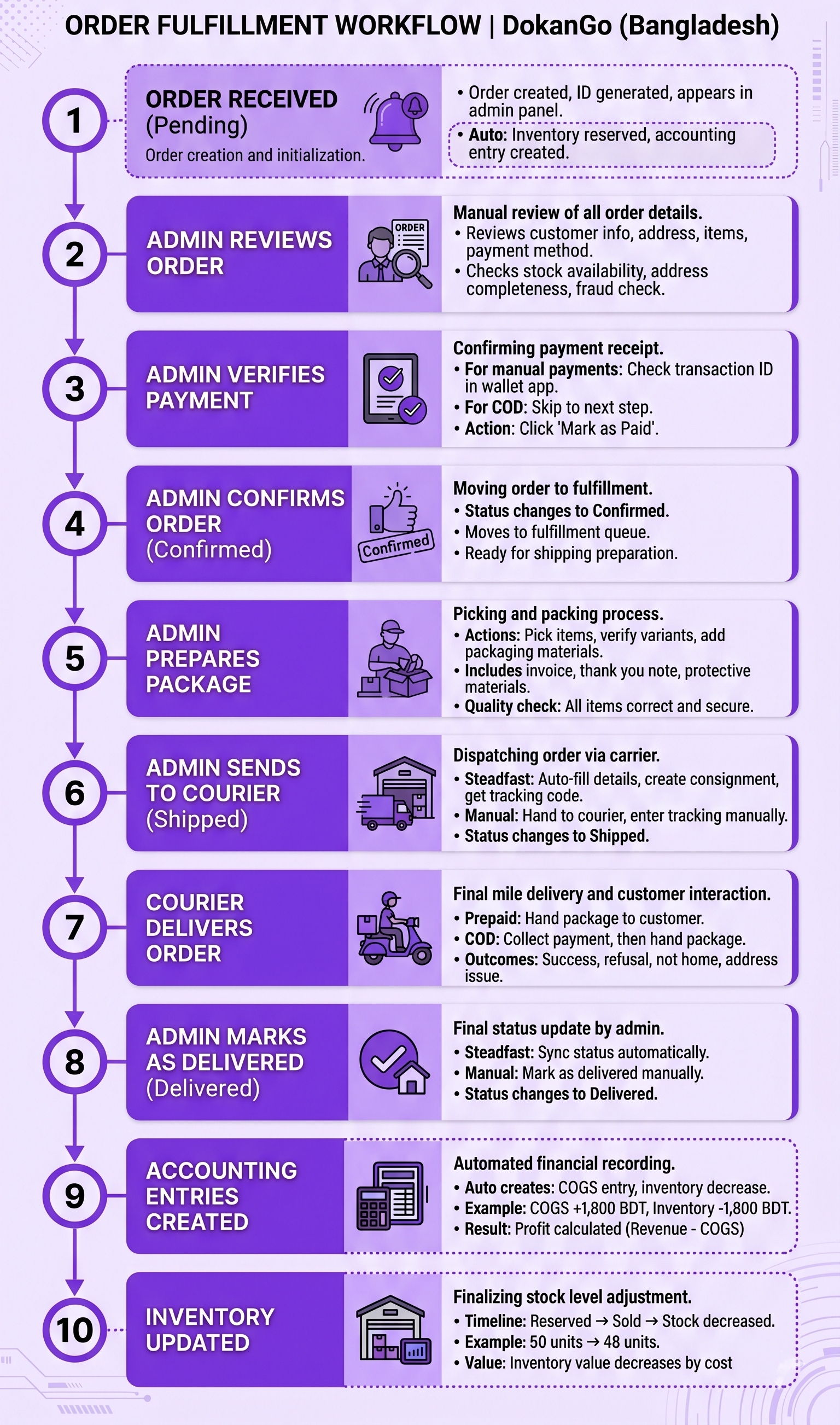
Step 1: Order Received (Pending Status)
A customer places an order on your store.
What Happens:
- Order is created in the system
- Order ID is generated
- Order status: Pending
- Order appears in admin panel
Automatic Actions:
- Inventory is reserved (stock decreases)
- Accounting entry created (Accounts Receivable increases)
- Customer receives order confirmation
- Admin receives notification
Admin View:
- Order appears in order list
- Order appears in unpaid queue (if manual payment)
- All order details are visible
Step 2: Admin Reviews Order
The admin opens the order to review details.
Order Information Reviewed:
- Customer name and contact information
- Shipping address
- Items ordered (products, variants, quantities)
- Order total
- Payment method
- Customer notes
Admin Checks:
- All items are in stock
- Address is complete and clear
- No suspicious activity (fraud check if needed)
- Pricing is correct
Decision Point:
- Proceed with order → Continue to payment verification
- Issue detected → Contact customer or cancel order
Step 3: Admin Verifies Payment
For manual payment methods (bKash, Nagad, Rocket), the admin verifies payment.
Verification Process:
For Manual Payments:
- Customer's transaction ID is visible in order
- Admin opens mobile wallet app
- Admin checks transaction history
- Admin finds matching transaction
- Admin verifies amount matches order total
- Admin clicks "Mark as Paid" in DokanGo
For COD:
- No payment verification needed
- Order proceeds directly to confirmation
Automatic Actions When Marked as Paid:
- Cash account increases (bKash/Nagad/Rocket)
- Accounts Receivable decreases
- Payment status changes to "Paid"
- Order is ready for confirmation
Step 4: Admin Confirms Order (Confirmed Status)
Once payment is verified, the admin confirms the order.
Confirmation Process:
- Admin clicks "Confirm Order" button
- System updates order status to Confirmed
- Order moves to fulfillment queue
Automatic Actions:
- Order status changes to Confirmed
- Customer sees status update
- Order appears in "Orders to Ship" list
- Inventory remains reserved
What This Means:
- Payment is verified
- Order is approved for fulfillment
- Ready to prepare for shipping
Step 5: Admin Prepares Package
The admin physically prepares the order for shipping.
Preparation Steps:
Gather Items:
- Pick products from inventory
- Verify correct items and variants
- Check product condition
- Ensure quantities match order
Package Items:
- Select appropriate packaging (box, bag, envelope)
- Add protective materials (bubble wrap, padding)
- Place items carefully in package
- Add invoice or packing slip
- Add thank you note (optional but recommended)
- Seal package securely
Label Package:
- Write or print shipping label
- Include customer name and phone
- Include complete address
- Include order ID for reference
- Mark as fragile if needed
Quality Check:
- All items included
- Correct variants selected
- Package is secure
- Label is clear and complete
Step 6: Admin Sends to Courier (Shipped Status)
The admin arranges delivery through courier service.
For Steadfast Integration:
- Admin clicks "Send to Steadfast" in order
- System pre-fills all information:
- Customer details
- Address
- COD amount (if applicable)
- Product description
- Admin reviews and submits
- Consignment is created in Steadfast
- Tracking code is generated
- Tracking code is saved to order
- Order status changes to Shipped
For Manual Courier:
- Admin hands package to courier
- Admin receives tracking code (if provided)
- Admin clicks "Mark as Shipped"
- Admin enters tracking information
- Order status changes to Shipped
Automatic Actions:
- Order status: Shipped
- Customer sees status update
- Tracking code is visible to customer
- Estimated delivery date is shown
Step 7: Courier Delivers Order
The courier delivers the package to the customer.
Delivery Process:
For Prepaid Orders:
- Courier arrives at customer address
- Courier hands package to customer
- Customer receives package
- Delivery is complete
For COD Orders:
- Courier arrives at customer address
- Courier collects payment from customer
- Courier hands package to customer
- Delivery is complete
- Courier remits payment to merchant later
Possible Outcomes:
- Successful delivery → Continue to Step 8
- Customer refuses → Return to merchant (Resolution needed)
- Customer not home → Courier attempts redelivery
- Address issue → Courier contacts merchant
Step 8: Admin Marks as Delivered (Delivered Status)
Once delivery is confirmed, the admin updates the order status.
For Steadfast Orders:
- Admin clicks "Sync Status"
- System queries Steadfast API
- If delivered, status updates automatically
- Or admin manually marks as delivered
For Manual Courier:
- Courier confirms delivery
- Admin clicks "Mark as Delivered"
- Order status changes to Delivered
Automatic Actions:
- Order status: Delivered
- Customer sees delivery confirmation
- Order moves to completed orders
Step 9: Accounting Entries Created Automatically
When the order is delivered, final accounting entries are created.
Automatic Accounting:
Cost of Goods Sold:
COGS increases by product cost
Inventory decreases by product cost
Example:
Products sold: 3 items
Total cost: 1,800 BDT

Accounting Entry:
  COGS: +1,800 BDT
  Inventory: -1,800 BDT
Complete Order Accounting:
When order placed:
  Accounts Receivable: +2,500 BDT
  Sales Revenue: +2,500 BDT

When payment verified:
  Cash - bKash: +2,500 BDT
  Accounts Receivable: -2,500 BDT

When delivered:
  COGS: +1,800 BDT
  Inventory: -1,800 BDT

Net Result:
  Cash: +2,500 BDT
  Revenue: +2,500 BDT
  COGS: +1,800 BDT
  Profit: +700 BDT
Step 10: Inventory Updated Automatically
Inventory is automatically adjusted throughout the order lifecycle.
Inventory Timeline:
When Order Placed:
- Stock is reserved (decreases)
- Items not available for other orders
- Prevents overselling
When Order Delivered:
- Stock decrease is confirmed
- Items are officially sold
- Inventory value decreases by cost
If Order Cancelled:
- Stock is released (increases)
- Items available for other orders
- Inventory value restored
Example:
Product A starting stock: 50 units

Order placed (2 units):
  Reserved: 2 units
  Available: 48 units
  Total: 50 units

Order delivered:
  Sold: 2 units
  Available: 48 units
  Total: 48 units

Inventory value:
  Before: 50 × 500 BDT = 25,000 BDT
  After: 48 × 500 BDT = 24,000 BDT
  Decrease: 1,000 BDT (moved to COGS)
Workflow Complete
The order has been successfully fulfilled from placement to delivery.
Key Outcomes:
For Customer:
- Received products as ordered
- Smooth delivery experience
- Can track order throughout process
- Satisfied with purchase
For Merchant:
- Payment received and verified
- Products delivered successfully
- Accurate inventory tracking
- Proper accounting records
- Profit realized
For System:
- All data is accurate
- Accounting is balanced
- Inventory is current
- Audit trail is complete
Best Practices
Verify Payments Promptly - Don't delay order fulfillment waiting for payment verification.
Prepare Packages Carefully - Quality packaging reduces damage and returns.
Use Tracking - Always provide tracking information to customers.
Communicate Proactively - Update customers about order status changes.
Leverage Automation - Use Steadfast integration to save time.
Quality Check - Verify items before packaging to prevent errors.
Update Status Accurately - Keep order status current for customer visibility.
Handle COD Carefully - Ensure courier collects correct amount.
Monitor Delivery Times - Track how long deliveries take and optimize.
Follow Up - Check in with customers after delivery to ensure satisfaction.
Common Issues and Solutions
Payment Not Received:
- Contact customer to verify payment
- Check transaction ID in mobile wallet
- Provide payment instructions again if needed
Item Out of Stock:
- Contact customer immediately
- Offer substitute or refund
- Update inventory to prevent future issues
Address Incomplete:
- Call customer to clarify address
- Update order with complete information
- Verify with courier if address is serviceable
Courier Delays:
- Track delivery status
- Communicate delays to customer
- Consider alternative courier if persistent issues
Customer Not Home:
- Courier attempts redelivery
- Contact customer to arrange delivery time
- Offer pickup option if available
Related Topics
- Order Processing - Detailed order management
- Payment System - Payment verification process
- Courier Integration - Delivery management
- Complete Checkout - Customer's ordering journey
- Return Processing - Handling returns and issues