Product Catalog Management
The product catalog interface gives you complete control over your inventory, from adding new products to managing variants, pricing, and stock levels. This is your central hub for building and maintaining your store's product offerings.
Overview
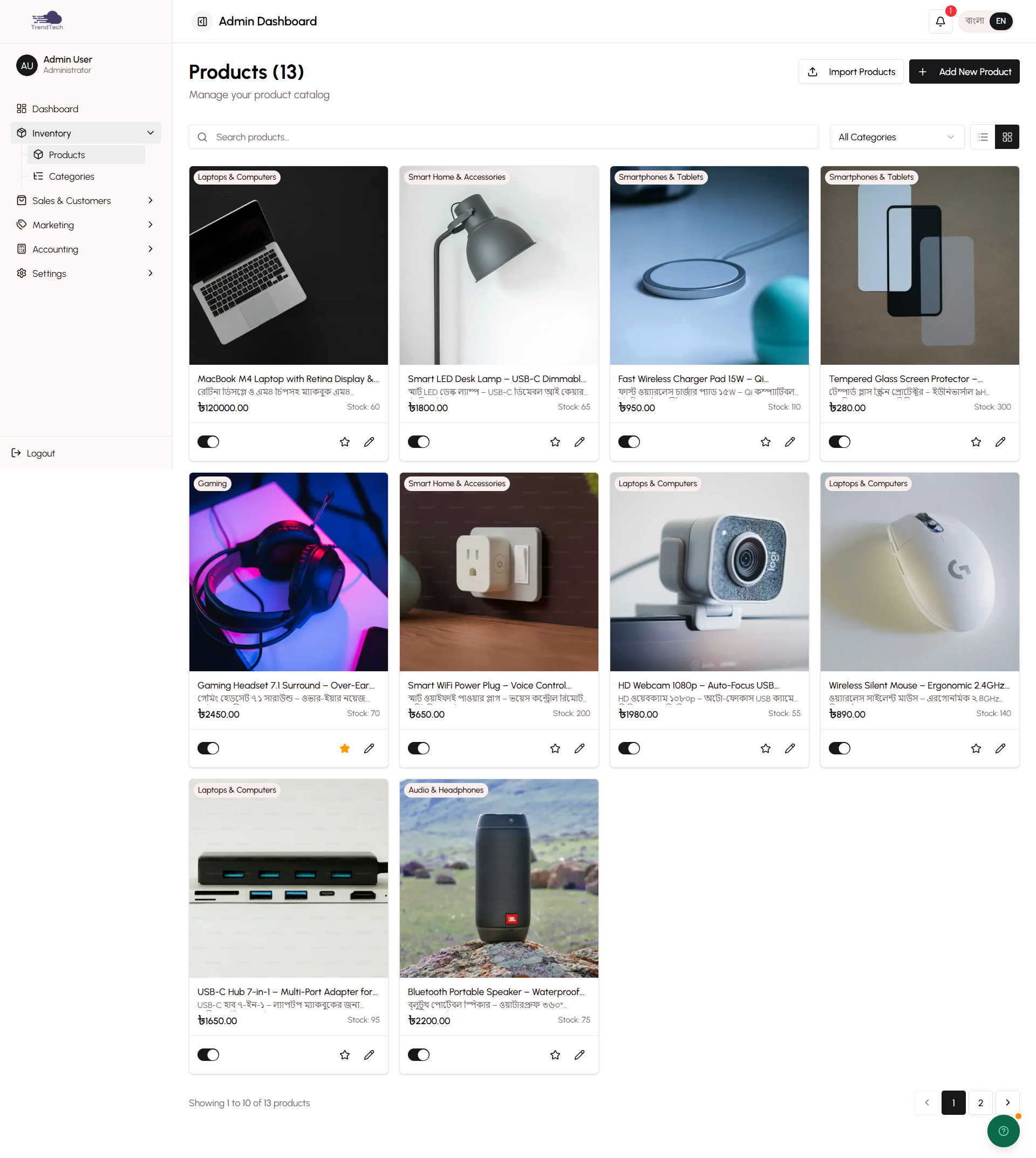
The product catalog management system provides a streamlined interface for managing all aspects of your products. You can quickly view your entire inventory, search for specific items, and make instant updates without navigating through multiple screens.
Key Capabilities
- Comprehensive product list with search and filtering
- Quick toggles for stock status and featured products
- Full product editor with bilingual content support
- Image management with drag-and-drop reordering
- Variant configuration for colors, sizes, and custom options
- Bulk operations for efficient management
- Category organization and assignment
Product List View
The product list displays all your products in an organized table format, making it easy to scan your inventory and take quick actions.
Search and Filtering
Find products instantly using the search bar. Search works across product names (both English and Bangla), SKUs, and categories. You can also filter by:
- Stock status (in stock, low stock, out of stock)
- Featured status
- Category
- Price range
- Date added
Quick Actions
Each product row includes quick toggle buttons that let you make instant changes without opening the full editor:
- Stock Status Toggle - Mark products as in stock or out of stock with one click
- Featured Toggle - Add or remove products from your featured collection
- Edit Button - Open the full product editor
- Delete Button - Remove products (with confirmation to prevent accidents)
Pagination
The list displays 20 products per page by default. Use the pagination controls at the bottom to navigate through your catalog, or adjust the items-per-page setting to show more products at once.
Product Form
The product editor provides a comprehensive form for creating new products or editing existing ones. All fields support bilingual content, allowing you to serve both English and Bangla-speaking customers.
Basic Information
Product Name - Enter your product name in both English and Bangla. The English name is required, while Bangla is optional but recommended for better customer experience.
Description - Write detailed product descriptions in both languages. Use the rich text editor to format your content with headings, bullet points, and emphasis. You can also use the AI content generation feature to create compelling descriptions automatically.
Category - Assign your product to one or more categories. Categories help customers find products and improve your store's organization.
Tags - Add relevant tags to improve searchability and create product collections.
Pricing
Regular Price - Set your standard selling price. This is the price customers see when there's no sale active.
Sale Price - Optionally set a discounted price. When a sale price is active, customers see both prices with the regular price crossed out.
Cost Price - Enter what you paid for the product. This is used for profitability calculations and is never shown to customers. The cost price is frozen at checkout time to ensure accurate profit tracking even if you update costs later.
Inventory Management
Stock Quantity - Enter the number of units available. The system automatically decreases stock when orders are placed and increases it when returns are processed.
SKU - Assign a unique Stock Keeping Unit code for inventory tracking. This is optional but recommended for organized inventory management.
Low Stock Threshold - Set the quantity at which you want to receive low stock alerts. When stock falls below this number, you'll see warnings in the dashboard.
Images
Upload product images to showcase your items. The image manager supports:
- Multiple images per product (up to 10)
- Drag-and-drop reordering to set the display sequence
- Automatic image optimization for fast loading
- Primary image selection (first image is the thumbnail)
Simply drag images to upload, then drag them into your preferred order. The first image appears in product listings and search results.
Variant Configuration
If your product comes in different colors, sizes, or options, use the variant system to manage all combinations efficiently.
Color Variants - Add color options with names in both English and Bangla. You can set different prices and stock levels for each color.
Size Variants - Define size options (S, M, L, XL, etc.) with individual pricing and inventory.
Custom Options - Create any other variant type you need (material, style, flavor, etc.).
Each variant combination can have:
- Its own price adjustment (add or subtract from base price)
- Separate stock quantity
- Unique SKU
The system automatically generates all possible combinations and lets you manage each one individually.
Product Status
Featured - Mark products as featured to display them prominently on your homepage.
Published - Control whether the product is visible to customers. Unpublished products remain in your catalog but don't appear on the storefront.
Category Management
Organize your products into logical categories to help customers navigate your store.
Creating Categories
Categories support bilingual names and descriptions. You can create hierarchical categories (parent and child categories) to build a structured catalog.
Assigning Products
Assign products to categories either from the product editor or by using bulk operations to categorize multiple products at once.
Bulk Operations
Save time by performing actions on multiple products simultaneously:
- Update stock status for multiple products
- Change featured status in bulk
- Assign categories to multiple products
- Delete multiple products (with confirmation)
- Export product data to Excel
Select products using the checkboxes, then choose your desired action from the bulk actions menu.
Delete Protection
DokanGo includes safeguards to prevent accidental product deletion:
- Confirmation dialog before deletion
- Warning if the product has existing orders
- Option to unpublish instead of delete (preserves order history)
Deleted products are permanently removed and cannot be recovered, so the system encourages unpublishing as a safer alternative.
Best Practices
Use Clear Product Names - Write descriptive names that help customers understand what you're selling at a glance.
Add Detailed Descriptions - Include size information, materials, care instructions, and any other details customers need to make informed decisions.
Upload High-Quality Images - Use clear, well-lit photos that show your products from multiple angles.
Set Accurate Stock Levels - Keep inventory counts current to avoid overselling and customer disappointment.
Use Cost Prices - Always enter cost prices to get accurate profitability reports and make informed business decisions.
Organize with Categories - Create a logical category structure that makes sense for your product range.
Monitor Low Stock - Set appropriate low stock thresholds and respond to alerts promptly to avoid stockouts.
Related Topics
- Product Management - Learn about the product system architecture
- Inventory Management - Understand stock tracking and management
- Bilingual System - Learn about language support
- AI Content Generation - Use AI to write product descriptions