Banner Management
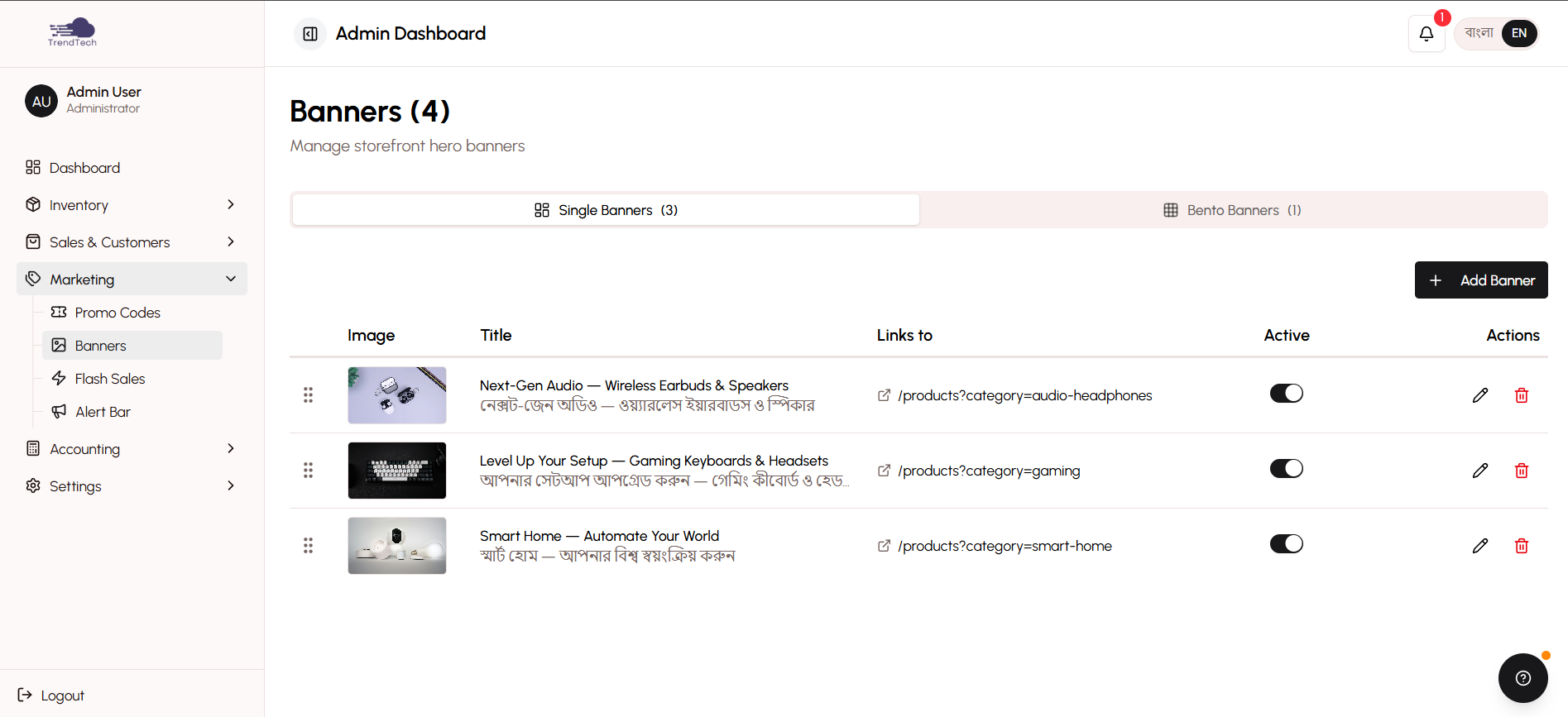
Homepage banners are the first thing customers see when they visit your store. DokanGo's banner management system lets you create eye-catching promotional carousels that showcase your best offers, new products, and seasonal campaigns.
Overview
The banner carousel appears at the very top of your homepage, rotating through multiple promotional images. Each banner can link to specific products, categories, or sales, making them a powerful tool for directing customer attention.
Key Capabilities
- Create multiple banners for carousel rotation
- Upload custom banner images
- Add bilingual titles for accessibility
- Set click-through URLs to drive traffic
- Control display order with sort priority
- Activate and deactivate banners on demand
- Automatic carousel rotation on storefront
Banner Carousel Overview
The banner carousel is a rotating slideshow of promotional images that appears at the top of your homepage.
How It Works
- Multiple banners rotate automatically (every 5 seconds by default)
- Customers can manually navigate using arrow buttons or dots
- Clicking a banner takes customers to the specified URL
- Carousel is responsive and looks great on all devices
- Banners display in order based on sort priority
Why Use Banners?
Highlight Promotions - Showcase flash sales, discount codes, and special offers prominently.
Feature New Products - Draw attention to newly added items or collections.
Tell Your Story - Use banners to communicate your brand message and values.
Drive Traffic - Link banners to specific products or categories to guide customer browsing.
Seasonal Campaigns - Update banners for holidays, seasons, and special events.
Create Visual Appeal - Beautiful banners make your store look professional and engaging.
Creating Banners
The banner creation process is simple and gives you full control over appearance and behavior.
Banner Image
Upload a high-quality image that will appear in the carousel.
Image Specifications:
- Recommended Size: 1920x600 pixels (desktop) or 800x600 pixels (mobile-optimized)
- Aspect Ratio: 16:5 or 4:3 works well
- Format: JPG or PNG
- File Size: Under 500KB for fast loading
- Resolution: High quality but optimized for web
Design Tips:
- Use bold, contrasting colors that stand out
- Include clear, readable text (large font sizes)
- Show product images when relevant
- Maintain consistent branding across all banners
- Ensure text is readable on mobile devices
- Leave space for carousel navigation buttons
- Test on both desktop and mobile before publishing
Bilingual Titles
Enter descriptive titles in both English and Bangla. These titles serve multiple purposes:
Accessibility - Screen readers use titles to describe images for visually impaired users.
SEO - Search engines index banner titles, improving discoverability.
Context - Titles appear as alt text if images fail to load.
Examples:
- English: "Summer Sale - Up to 50% Off Fashion Items"
- Bangla: "গ্রীষ্মকালীন সেল - ফ্যাশন আইটেমে ৫০% পর্যন্ত ছাড়"
Click-Through URL
Specify where customers should go when they click the banner.
URL Options:
Product Page - Link to a specific product
- Example:
/products/summer-dress-collection
Category Page - Link to a product category
- Example:
/categories/womens-fashion
Flash Sale - Link to active flash sale
- Example:
/flash-sale
Collection - Link to a curated collection
- Example:
/collections/new-arrivals
External Page - Link to social media or external content
- Example:
https://facebook.com/yourstore
Homepage Section - Use anchor links to jump to specific sections
- Example:
/#featured-products
Best Practices:
- Always test URLs before activating banners
- Use relative URLs for internal pages (starts with
/) - Use full URLs for external links (starts with
https://) - Ensure linked pages are relevant to banner content
- Don't link to out-of-stock or unavailable items
Sort Order
Control the sequence in which banners appear in the carousel.
How It Works:
- Banners are sorted by sort order number (lowest to highest)
- Banner with sort order 1 appears first
- Banner with sort order 2 appears second, and so on
- Banners with the same sort order are sorted by creation date
Strategic Ordering:
- Put your most important promotion first (sort order 1)
- Place seasonal or time-sensitive banners early
- Position evergreen content later in the sequence
- Update sort order as priorities change
Activation and Deactivation
Control which banners appear in the carousel.
Activating Banners
Make a banner visible in the carousel:
- Create the banner with image, titles, and URL
- Set the sort order
- Click "Activate" button
- Banner immediately appears in the homepage carousel
You can have multiple active banners simultaneously. The carousel rotates through all active banners.
Deactivating Banners
Temporarily remove a banner from the carousel:
- Open the banner
- Click "Deactivate" button
- Banner is removed from carousel
- Banner data is preserved for future reactivation
When to Deactivate:
- Promotion has ended
- Seasonal campaign is over
- Linked product is out of stock
- You want to refresh the carousel with new content
- Testing different banner combinations
Deactivated banners can be reactivated anytime, making it easy to reuse seasonal or recurring promotions.
Deleting Banners
Permanently remove a banner:
- Open the banner
- Click "Delete" button
- Confirm deletion
- Banner is permanently removed
Only delete banners you're certain you won't need again. Deactivation is usually a better option for seasonal content.
Storefront Display
Active banners appear in a carousel at the top of your homepage.
Carousel Behavior
Automatic Rotation:
- Banners change every 5 seconds automatically
- Smooth transition animations between banners
- Infinite loop (returns to first banner after last)
Manual Navigation:
- Arrow buttons (left/right) for manual control
- Dot indicators show current position
- Click dots to jump to specific banners
- Swipe gestures on mobile devices
Responsive Design:
- Banners scale to fit screen size
- Maintains aspect ratio on all devices
- Touch-friendly on mobile
- Fast loading with optimized images
Click Behavior
When customers click a banner:
- They're taken to the specified URL
- Internal links open in the same tab
- External links can open in new tabs (configurable)
- Click tracking for analytics
Best Practices
Limit Active Banners - Use 3-5 active banners for optimal carousel performance. Too many banners dilute impact.
Update Regularly - Refresh banners every 2-4 weeks to keep your store looking current and engaging.
Maintain Consistency - Use similar design styles, colors, and fonts across all banners for cohesive branding.
Prioritize Mobile - Most customers browse on phones, so ensure banners are readable on small screens.
Use High-Quality Images - Blurry or pixelated banners look unprofessional and hurt credibility.
Include Clear Calls-to-Action - Tell customers what to do: "Shop Now", "Learn More", "Get 50% Off".
Test Click-Through URLs - Always verify links work before activating banners.
Optimize File Sizes - Compress images to load quickly without sacrificing quality.
Tell a Story - Use banner sequence to create a narrative (e.g., problem → solution → call-to-action).
Align with Campaigns - Coordinate banners with flash sales, promo codes, and social media campaigns.
Track Performance - Monitor which banners get the most clicks and adjust accordingly.
Seasonal Updates - Create banners for Eid, Pohela Boishakh, Victory Day, and other important dates.
A/B Test - Try different designs, messages, and URLs to see what resonates with your audience.
Banner Design Guidelines
Text on Banners
Do:
- Use large, bold fonts (minimum 48px for headlines)
- Ensure high contrast between text and background
- Keep messages short (5-7 words maximum)
- Include specific offers ("50% Off" not "Big Sale")
- Use action verbs ("Shop", "Discover", "Save")
Don't:
- Use small or thin fonts
- Place text over busy backgrounds
- Write long paragraphs
- Use all caps for everything (reduces readability)
- Rely solely on text (include visual elements)
Visual Elements
Do:
- Show actual product photos when possible
- Use professional, high-quality images
- Maintain consistent color schemes
- Include your logo for brand recognition
- Leave breathing room (don't crowd the design)
Don't:
- Use generic stock photos that don't relate to your products
- Overcrowd with too many elements
- Use clashing colors
- Forget about mobile display
- Ignore your brand identity
Call-to-Action Buttons
Do:
- Make buttons large and clickable
- Use contrasting colors that stand out
- Include clear action text ("Shop Now", "Learn More")
- Position buttons prominently
- Ensure buttons are touch-friendly on mobile
Don't:
- Make buttons too small
- Use vague text ("Click Here")
- Hide buttons in corners
- Use colors that blend with background
Common Use Cases
Flash Sale Promotion
Image: Products with discount badges and countdown timer
Title: "24-Hour Flash Sale - Up to 60% Off"
URL: /flash-sale
Sort Order: 1 (highest priority)
New Product Launch
Image: Hero shot of new product
Title: "Introducing Our Latest Collection"
URL: /products/new-collection
Sort Order: 2
Seasonal Campaign
Image: Seasonal theme (Eid, summer, winter)
Title: "Eid Special - Exclusive Designs for Your Celebration"
URL: /categories/eid-collection
Sort Order: 1 (during season)
Brand Story
Image: Your workshop, team, or process
Title: "Handcrafted with Love in Bangladesh"
URL: /about
Sort Order: 5 (lower priority)
Free Shipping Offer
Image: Delivery truck or package
Title: "Free Delivery on Orders Over 1000 BDT"
URL: /
Sort Order: 3
Related Topics
- Flash Sales - Create time-limited promotions to feature in banners
- Storefront - Learn about homepage layout and components
- Product Management - Manage products to link from banners
- Bilingual System - Understand language support for banner titles