Setup Wizard
When you first access the admin panel, you'll be guided through a simple 4-step setup wizard that helps you configure your store. This wizard ensures your store is ready to accept orders and serve customers right away.
Overview
The setup wizard collects essential information about your business, payment methods, and store preferences. The entire process takes just a few minutes and requires no technical knowledge. You can always update these settings later from the Store Settings page.
What You'll Configure
- Store identity (name, logo, description)
- Contact information (phone, email, address)
- Payment details (bKash, Nagad, Rocket numbers)
- Store preferences (checkout rules, COD settings)
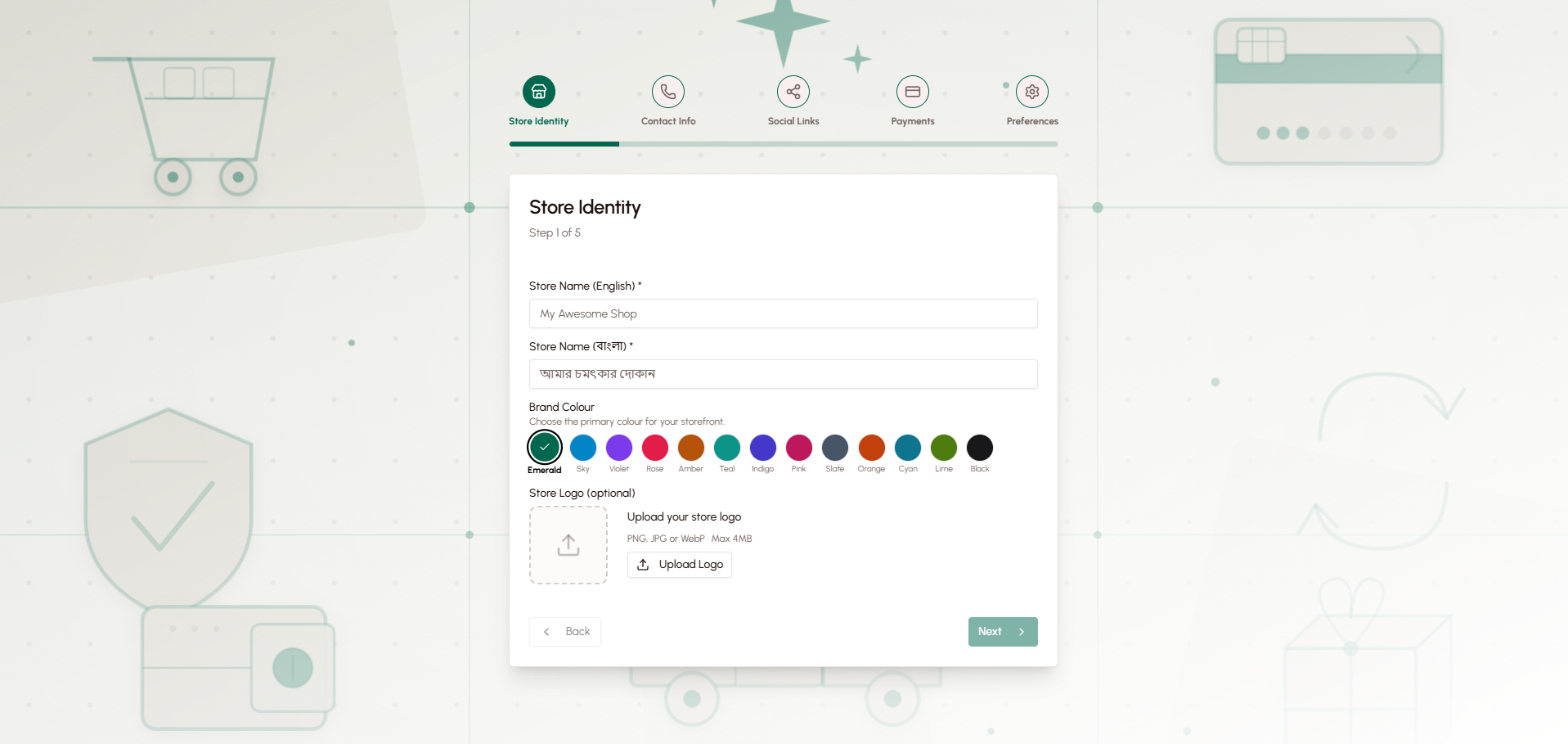
Step 1: Store Identity
The first step establishes your store's brand and identity. This information appears on your storefront and helps customers recognize your business.
Store Name
Enter your store name in both English and Bangla. This bilingual approach ensures you can serve customers who prefer either language.
- English Name: Used when customers view your store in English mode
- Bangla Name: Used when customers switch to Bangla language
Store Description
Write a brief description of your business. This appears on your homepage and helps customers understand what you sell. Like the store name, you can provide descriptions in both languages.
Logo Upload
Upload your store logo. This image appears in the header of your storefront and helps build brand recognition. The system accepts common image formats (JPG, PNG) and will automatically resize your logo for optimal display.
Step 2: Contact Information
This step collects the contact details customers will use to reach you. Accurate contact information builds trust and makes it easy for customers to ask questions or resolve issues.
Phone Number
Your primary business phone number. Customers will see this number on your storefront and can use it to contact you about orders or products.
Email Address
Your business email address. This is used for order notifications and customer communications. Make sure you have access to this email account.
Physical Address
Your business address in Bangladesh. This information appears on your storefront and is used for shipping calculations. The address form follows the Bangladeshi format:
- Street address
- Thana/Upazila
- District
- Division
Step 3: Payment Details
Configure how customers will pay for their orders. The platform supports Bangladesh's most popular mobile financial services, giving customers flexible payment options.
Mobile Wallet Numbers
Enter your account numbers for the mobile payment services you use:
- bKash Number: Your personal or merchant bKash account number
- Nagad Number: Your Nagad account number
- Rocket Number: Your Rocket account number
You don't need to provide all three. Enter only the payment methods you want to accept. Most merchants provide at least one mobile wallet option.
Payment Instructions
Write custom instructions that customers will see after placing an order. These instructions guide customers on how to send payment. For example:
"Please send the exact order amount to our bKash number using the Send Money option. After sending payment, enter your bKash Transaction ID on the next screen."
You can provide instructions in both English and Bangla to ensure all customers understand the payment process.
Step 4: Store Preferences
The final step configures important rules about how your store operates. These settings control checkout behavior and order policies.
Email Requirement
Choose whether customers must provide an email address during checkout:
- Required: Customers cannot complete checkout without entering an email
- Optional: Email field is shown but not required
Most stores make email optional to reduce checkout friction, especially since many customers in Bangladesh prefer phone-based communication.
Guest Checkout
Enable or disable guest checkout:
- Enabled: Customers can place orders without creating an account
- Disabled: Customers must register and log in before ordering
Guest checkout is recommended because it reduces barriers to purchase. Customers can still create accounts later, and their guest orders will be automatically linked to their account.
Out-of-Stock Order Policy
Decide whether customers can order products that are currently out of stock:
- Allow: Customers can place orders for out-of-stock items
- Prevent: Out-of-stock products cannot be added to cart
Allowing out-of-stock orders is useful if you can quickly restock items or accept pre-orders.
Cash on Delivery (COD) Settings
Configure Cash on Delivery as a payment option:
- Enable/Disable COD: Turn this payment method on or off
- COD Fee: Set an additional fee for COD orders (optional)
- COD Fee Type: Choose between a fixed amount or percentage
Many Bangladeshi customers prefer COD, but it comes with higher risk. The COD fee helps offset the cost of handling cash payments and reduces order cancellations.
After Setup
Once you complete all four steps, your store is ready to use. You'll be taken to the admin dashboard where you can:
- Add your first products
- Create product categories
- Test the checkout process
- Customize your storefront further
All the settings you configured in the wizard can be updated anytime from the Store Settings page in the admin panel.
Benefits
The setup wizard provides several advantages:
- Quick Start: Get your store running in minutes, not hours
- No Technical Knowledge Required: Simple forms with clear labels
- Bilingual Support: Configure content in both English and Bangla from the start
- Flexible Configuration: All settings can be changed later as your business evolves
- Guided Process: Step-by-step flow ensures you don't miss important settings
Related Topics
- Overview - Learn about the platform's purpose and value
- First Steps - What to do after completing setup
- Store Settings - How to update your configuration later