Payment System
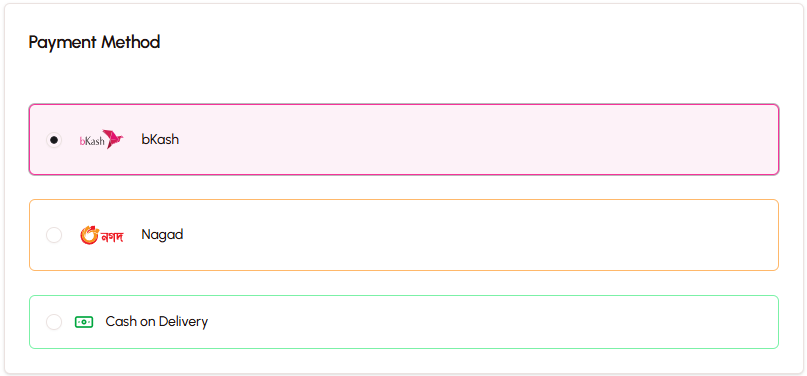
The platform uses a manual payment workflow designed specifically for the Bangladeshi market. Instead of complex payment gateways, customers pay using the mobile wallets they already trust—bKash, Nagad, and Rocket—or choose Cash on Delivery. This approach eliminates technical barriers, reduces costs, and provides a familiar payment experience for your customers.
Why Manual Payments?
The Payment Gateway Challenge in Bangladesh
Traditional online payment gateways present significant obstacles for small businesses:
High Costs
- Setup fees ranging from ৳10,000 to ৳50,000
- Transaction fees of 2-3% per sale
- Monthly maintenance charges
- Hidden processing fees
Complex Requirements
- Extensive paperwork and documentation
- Trade license verification
- Bank account requirements
- Lengthy approval processes (often 2-4 weeks)
Technical Barriers
- API integration requiring developer expertise
- SSL certificate requirements
- Server configuration needs
- Ongoing technical maintenance
Our Solution: Manual Payment Workflow
The manual payment system solves these challenges by using payment methods Bangladeshi customers already use daily:
- No Setup Costs — Start accepting payments immediately
- No Transaction Fees — Keep 100% of your revenue (minus mobile wallet transfer fees)
- No Technical Integration — Works out of the box
- Familiar to Customers — Everyone knows how to use bKash, Nagad, and Rocket
- Instant Setup — Enter your wallet numbers and start selling
This approach is perfect for small-to-medium businesses that want to avoid the complexity and cost of traditional payment gateways while providing a trusted payment experience.
Supported Payment Methods
bKash
Bangladesh's most popular mobile financial service. Customers can send money using:
- bKash app
- USSD code (*247#)
- Agent points
Your bKash number is displayed to customers after they place an order, along with clear instructions for completing the payment.
Nagad
Government-backed mobile wallet service. Customers can pay through:
- Nagad app
- USSD code (*167#)
- Agent locations
Nagad offers competitive transaction fees and is widely trusted by customers.
Rocket
Dutch-Bangla Bank's mobile banking service. Payment options include:
- Rocket app
- USSD code (*322#)
- Agent points
Rocket is particularly popular for larger transactions and business payments.
Cash on Delivery (COD)
For customers who prefer to pay when they receive their order. You can:
- Enable or disable COD in store settings
- Set a COD fee (fixed amount added to order total)
- Configure COD availability by area or order value
COD orders follow the same workflow as prepaid orders but skip the payment verification step.
Complete Payment Workflow
Step 1: Customer Places Order
The customer completes the checkout process by:
- Reviewing their cart
- Entering delivery information (name, phone, address)
- Selecting their preferred payment method
- Placing the order
At this point, the order is created with a Pending status and appears in your admin panel's Unpaid Orders Queue.
Step 2: Customer Sees Payment Instructions
Immediately after placing the order, the customer sees a payment instruction screen showing:
- Your wallet number (bKash, Nagad, or Rocket, depending on their selection)
- Order total amount
- Order ID for reference
- Step-by-step payment instructions
- Transaction ID input field
The instructions guide the customer through:
- Opening their mobile wallet app
- Selecting "Send Money"
- Entering your wallet number
- Entering the exact order amount
- Completing the transaction
- Copying the Transaction ID
- Returning to your website and entering the Transaction ID
Step 3: Customer Sends Payment
The customer opens their mobile wallet app and sends the payment to your number. This happens outside your website—the customer uses their familiar bKash, Nagad, or Rocket app just like they would for any other payment.
Step 4: Customer Provides Transaction ID
After completing the payment, the customer receives a Transaction ID (also called TrxID or Reference Number) from their mobile wallet. They return to your website and enter this ID in the provided field.
This Transaction ID is crucial—it's the proof of payment you'll use to verify the transaction.
Step 5: Order Appears in Unpaid Orders Queue
Your admin panel features a dedicated Unpaid Orders Queue that shows all orders awaiting payment verification. For each order, you can see:
- Customer name and phone number
- Order total
- Selected payment method
- Transaction ID (if provided)
- Order date and time
This queue makes it easy to process payments in batch rather than checking each order individually.
Step 6: Admin Verifies Payment
You verify the payment by:
- Opening your mobile wallet app (bKash, Nagad, or Rocket)
- Checking your transaction history
- Finding the transaction matching the customer's Transaction ID
- Confirming the amount matches the order total
- Confirming the transaction date is recent
If everything matches, you mark the payment as verified in the admin panel.
Step 7: Admin Confirms Order
Once payment is verified, you change the order status from Pending to Confirmed. This action:
- Removes the order from the Unpaid Orders Queue
- Notifies the customer (if notifications are enabled)
- Triggers inventory deduction
- Records the transaction in your accounting system
- Moves the order to the fulfillment workflow
The order is now ready for packaging and shipping.
Unpaid Orders Queue
The Unpaid Orders Queue is your central hub for managing payment verification. It provides:
Quick Filtering
- View all unpaid orders at once
- Filter by payment method (bKash, Nagad, Rocket, COD)
- Sort by date, amount, or customer name
- Search by Transaction ID or customer phone
Batch Processing
- Verify multiple payments in one session
- Mark payments as verified with a single click
- Bulk confirm orders after verification
- Efficient workflow for high-volume stores
Payment Status Tracking
- Pending — Order placed, awaiting payment
- Transaction ID Provided — Customer entered Transaction ID, awaiting verification
- Verified — Payment confirmed, ready to confirm order
- Confirmed — Order confirmed and moved to fulfillment
Admin Actions
- Mark payment as verified
- Confirm order (changes status to Confirmed)
- Cancel order (if payment not received)
- Contact customer (phone number displayed)
- Add admin notes for internal tracking
Cash on Delivery (COD) Workflow
COD orders follow a simplified workflow since payment happens at delivery:
Step 1: Customer Selects COD
During checkout, the customer chooses "Cash on Delivery" as their payment method.
Step 2: COD Fee Applied (Optional)
If you've configured a COD fee in store settings, it's automatically added to the order total. This fee compensates for the additional risk and handling of COD orders.
Step 3: Order Created as Pending
The order appears in your admin panel with Pending status, just like prepaid orders.
Step 4: Admin Confirms Order
You review the order and confirm it without payment verification. The order moves to Confirmed status and enters the fulfillment workflow.
Step 5: Package and Ship
You prepare the package and send it via courier. The courier collects payment from the customer upon delivery.
Step 6: Courier Delivers and Collects Payment
The courier delivers the package and collects cash from the customer. The courier then transfers the collected amount to you (minus their delivery fee).
Step 7: Admin Marks as Delivered
Once you receive confirmation from the courier, you mark the order as Delivered in the admin panel. This triggers:
- Accounting entry recording the revenue
- Inventory update (if not already deducted)
- Order completion
Payment Verification Best Practices
Verify Payments Regularly
- Check the Unpaid Orders Queue at least twice daily
- Process payments promptly to avoid customer confusion
- Set up a routine verification schedule (e.g., morning and evening)
Match Transaction Details Carefully
- Confirm Transaction ID matches exactly
- Verify amount matches order total
- Check transaction date is within expected timeframe
- Ensure payment came from customer's phone number (if visible in wallet app)
Handle Discrepancies
- If amount doesn't match, contact customer before confirming
- If Transaction ID not found, ask customer to provide screenshot
- If payment is less than order total, request remaining amount
- If payment is more than order total, arrange refund or credit
Communicate with Customers
- Respond quickly to payment questions
- Provide clear instructions if issues arise
- Confirm order status after verification
- Keep customers informed throughout the process
Manage COD Orders Carefully
- Consider limiting COD to certain areas or order values
- Use COD fees to offset risk and handling costs
- Track COD refusal rates by area or customer
- Work with reliable courier services for COD deliveries
Benefits of Manual Payment System
For Your Business
Cost Savings
- No setup fees or monthly charges
- No transaction fees (except mobile wallet transfer fees)
- No technical integration costs
- No maintenance expenses
Simplicity
- Start accepting payments immediately
- No technical knowledge required
- No paperwork or approval processes
- Easy to manage and track
Control
- You verify every payment personally
- Direct access to your money in mobile wallets
- No payment holds or delays
- Full visibility into transaction history
Flexibility
- Accept payments through multiple wallets
- Offer COD for customer convenience
- Adjust payment methods based on customer preferences
- No vendor lock-in
For Your Customers
Familiarity
- Use payment methods they already know and trust
- No need to enter card details or create payment accounts
- Same process they use for everyday transactions
- Confidence in established mobile wallet security
Convenience
- Pay using their preferred mobile wallet
- Option to pay cash on delivery
- No additional apps or registrations required
- Quick and straightforward payment process
Trust
- Established mobile wallet brands
- Government-backed options (Nagad)
- Familiar security measures
- Transparent transaction records
Common Questions
What if a customer doesn't provide a Transaction ID?
Orders without Transaction IDs remain in the Unpaid Orders Queue. You can:
- Contact the customer and request the Transaction ID
- Check your wallet transaction history for payments matching the order amount and date
- Cancel the order if payment isn't received within a reasonable timeframe
How do I handle partial payments?
If a customer sends less than the order total:
- Contact the customer to request the remaining amount
- Wait for the second payment
- Verify both transactions
- Confirm the order once full payment is received
Alternatively, you can adjust the order total to match the payment received (if appropriate).
What if I receive payment but can't find the order?
This can happen if:
- The customer placed the order but didn't complete the Transaction ID step
- There was a technical issue during order creation
- The customer sent payment without placing an order
Check your Unpaid Orders Queue for orders matching the amount and customer phone number. If no order exists, contact the customer to clarify.
Can I refund a payment?
Yes, you can refund payments by sending money back through the same mobile wallet. The platform doesn't automate refunds—you handle them manually through your wallet app. Be sure to:
- Document the refund in admin notes
- Update the order status appropriately
- Communicate with the customer about the refund
How do I track which wallet received which payment?
When customers select their payment method during checkout, the order records which wallet they chose (bKash, Nagad, or Rocket). You can filter the Unpaid Orders Queue by payment method to see which payments should appear in which wallet.
Related Topics
- Order Management — Learn about order statuses and processing
- Store Settings — Configure payment methods and COD settings
- Complete Checkout Flow — See the entire customer journey
- Financial Management — Understand how payments are recorded
Next Steps
Now that you understand the payment system, explore:
- Order Management — Learn how to process orders after payment verification
- Setup Wizard — Configure your payment methods during initial setup
- Order Processing — Master the admin workflow for managing orders