Admin Dashboard
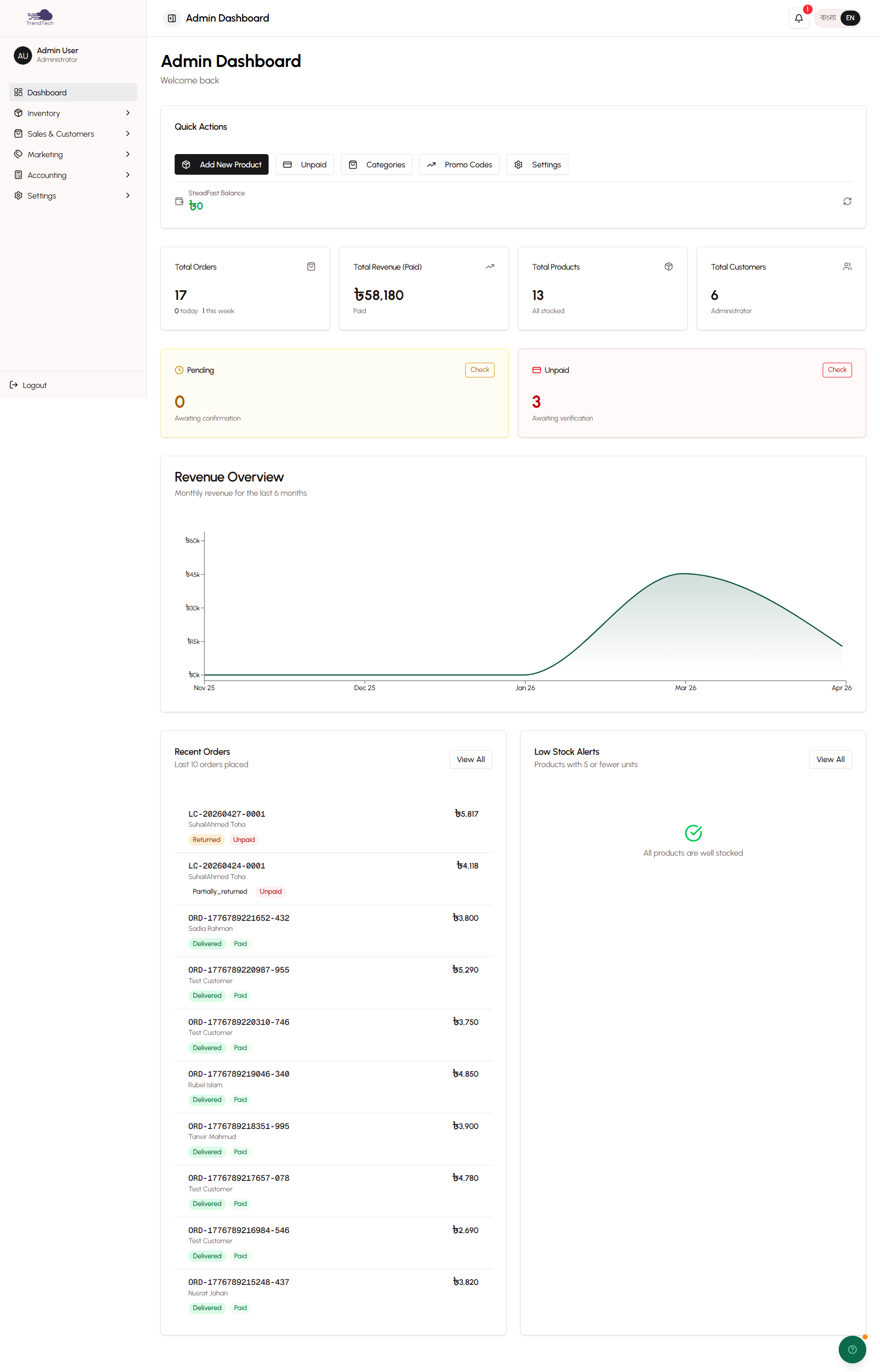
The DokanGo admin dashboard is your command center for managing your online store. It provides a comprehensive overview of your business performance, recent activity, and critical alerts—all in one place.
Overview
The dashboard is designed to give you immediate visibility into your store's health and performance. When you log into the admin panel, you're greeted with real-time statistics, visual analytics, and actionable insights that help you make informed business decisions quickly.
Key Capabilities
- Real-time business statistics and KPIs
- Visual revenue trends and performance charts
- Recent order activity monitoring
- Inventory alerts for low stock items
- Quick access to critical actions
- Guided onboarding for new merchants
- Mobile-optimized navigation
Quick Statistics
At the top of your dashboard, you'll find four key performance indicators (KPIs) that provide an instant snapshot of your business:
Total Orders
Displays the total number of orders your store has received. This includes all order statuses—pending, confirmed, shipped, delivered, cancelled, and returned. It gives you a sense of your overall business volume and customer demand.
Revenue
Shows your total revenue generated from confirmed and delivered orders. This figure represents the gross sales amount before expenses, giving you a clear picture of your income stream. Revenue updates in real-time as orders are confirmed and completed.
Customers
Tracks the total number of unique customers who have placed orders with your store. This includes both registered customers with accounts and guest customers who checked out without creating an account. Understanding your customer count helps you gauge market reach and growth potential.
Products
Displays the total number of products currently in your catalog. This includes both in-stock and out-of-stock items, giving you visibility into your inventory breadth. A growing product count often correlates with increased customer choice and sales opportunities.
Revenue Chart
Below the quick statistics, you'll find a visual revenue chart that plots your sales performance over time. This interactive chart helps you identify trends, seasonal patterns, and growth trajectories.
Chart Features
Time Period Selection
Choose from multiple time ranges to analyze your revenue:
- Last 7 days - Spot short-term trends and daily performance
- Last 30 days - Understand monthly patterns and cycles
- Last 90 days - Identify seasonal trends and quarter performance
- Last 12 months - View annual growth and year-over-year comparison
Visual Insights
The chart uses a line graph to show revenue progression, making it easy to spot:
- Growth trends (upward slopes indicate increasing sales)
- Seasonal peaks (high points during festivals or promotional periods)
- Slow periods (dips that may require marketing intervention)
- Impact of marketing campaigns (spikes following promotions)
Interactive Elements
Hover over any point on the chart to see the exact revenue amount for that specific day or period. This granular view helps you correlate sales spikes with specific events, campaigns, or external factors.
Recent Orders Widget
The recent orders section displays your latest customer orders in a clean, scannable list. This widget keeps you informed about incoming business and helps you quickly identify orders that need attention.
Order Information Displayed
Each order entry shows:
Order Number
A unique identifier for the order (e.g., #1234) that you can use to reference and track the order throughout its lifecycle.
Customer Name
The name of the customer who placed the order, helping you personalize service and recognize repeat customers.
Order Total
The total amount of the order including products, delivery charges, and any discounts applied. This gives you immediate visibility into order value.
Payment Status
Indicates whether the order has been paid or is still pending payment verification. Unpaid orders require your attention to verify transaction IDs and confirm payment receipt.
Order Status
Shows the current fulfillment stage:
- Pending - Awaiting payment verification
- Confirmed - Payment verified, ready for preparation
- Shipped - Package sent to courier or out for delivery
- Delivered - Successfully received by customer
- Cancelled - Order cancelled by admin or customer
- Returned - Customer initiated a return
Order Date
Timestamp showing when the order was placed, helping you prioritize processing based on order age.
Quick Actions
From the recent orders widget, you can:
- Click any order to view full details
- Quickly identify unpaid orders that need payment verification
- Spot high-value orders that may need special handling
- Monitor order flow throughout the day
Low Stock Alerts
The dashboard includes a dedicated low stock alerts section that helps you avoid stockouts and maintain inventory availability. This proactive feature ensures you never miss a sales opportunity due to out-of-stock products.
How It Works
DokanGo automatically monitors your product inventory levels and flags items that are running low. The system considers both simple products and product variants with individual stock tracking.
Alert Criteria
A product appears in the low stock alerts when:
- Stock quantity falls below 10 units (default threshold)
- The product is actively listed on your storefront
- The product has stock tracking enabled
Alert Information
Each low stock alert displays:
Product Name
The name of the product in both English and Bangla (if bilingual mode is enabled), making it easy to identify which item needs restocking.
Current Stock Level
The exact number of units remaining in inventory. This helps you prioritize restocking based on urgency—products with 1-2 units need immediate attention, while those with 8-9 units can be restocked during your next order cycle.
Variant Details
If the product has variants (colors, sizes, options), the alert specifies which variant is running low. For example, "Blue T-Shirt - Size L" might be low while other sizes remain well-stocked.
Taking Action
When you see a low stock alert:
- Click the product name to open the product edit page
- Update the stock quantity after restocking
- Consider adjusting your reorder point if the product frequently runs low
- Review sales velocity to optimize future inventory levels
Benefits
- Prevent Lost Sales - Restock before items go out of stock
- Maintain Customer Satisfaction - Avoid disappointing customers with unavailable products
- Optimize Cash Flow - Restock strategically based on actual demand
- Reduce Manual Monitoring - Let the system track inventory for you
Guided Tour System
For new merchants, DokanGo includes an interactive guided tour that walks you through the admin panel's key features. This onboarding experience helps you get up to speed quickly without feeling overwhelmed.
Tour Features
Step-by-Step Walkthrough
The tour highlights important sections of the dashboard and admin panel in a logical sequence:
- Dashboard overview and statistics
- Product management section
- Order processing workflow
- Customer management tools
- Store settings and configuration
Interactive Highlights
As you progress through the tour, visual highlights (spotlights or tooltips) draw your attention to specific interface elements. These highlights explain what each section does and why it matters for your business.
Skip or Restart Anytime
You're in control of the tour experience:
- Skip the tour if you prefer to explore on your own
- Restart the tour anytime from the help menu
- Pause at any step to try features hands-on
- Resume where you left off if you navigate away
Contextual Help
The tour provides context-specific tips and best practices. For example, when highlighting the product management section, it might suggest "Start by adding 5-10 products to build your initial catalog."
When the Tour Appears
The guided tour automatically launches:
- After completing the first-time setup wizard
- On your first login to the admin panel
- When you manually trigger it from the help menu
Benefits for New Merchants
- Faster Onboarding - Learn the platform in minutes, not hours
- Confidence Building - Understand where everything is located
- Best Practices - Learn recommended workflows from the start
- Reduced Learning Curve - No need to read lengthy manuals
Mobile Dock Navigation
DokanGo's admin panel includes a mobile-optimized dock navigation system that makes store management convenient on smartphones and tablets. This feature recognizes that many small business owners manage their stores on-the-go.
Dock Design
The mobile dock appears as a fixed navigation bar at the bottom of the screen when you access the admin panel on a mobile device. This bottom placement makes it easy to reach with your thumb while holding your phone.
Navigation Items
The dock includes quick access to the most frequently used admin sections:
Dashboard
Returns you to the main dashboard overview with statistics and recent activity.
Products
Opens the product management section where you can view, edit, and add products to your catalog.
Orders
Takes you to the order list where you can process orders, verify payments, and update order statuses.
Customers
Opens the customer management section to view customer profiles and purchase history.
More
Expands to reveal additional admin sections like marketing tools, financial reports, and store settings.
Mobile-Optimized Features
Touch-Friendly Targets
All navigation items and buttons are sized appropriately for touch interaction, reducing the risk of accidental taps.
Responsive Layout
The dashboard automatically adjusts its layout on mobile devices:
- Statistics cards stack vertically for easy scrolling
- Charts resize to fit smaller screens
- Tables become horizontally scrollable
- Forms use mobile-friendly input types
Persistent Access
The dock remains visible as you scroll through content, ensuring you can always navigate to another section without scrolling back to the top.
Benefits for Mobile Management
- Manage Anywhere - Process orders from your phone while away from your computer
- Quick Updates - Update product stock or order statuses on-the-go
- Instant Notifications - Check new orders immediately when you receive alerts
- Flexibility - Run your business from anywhere with internet access
Dashboard Customization
While the dashboard provides a standard layout optimized for most merchants, DokanGo is designed to surface the most relevant information based on your business activity.
Automatic Prioritization
The dashboard intelligently prioritizes information:
- Recent orders show the latest 10 orders by default
- Low stock alerts appear only when items fall below threshold
- Revenue chart defaults to the most relevant time period for your business stage
Refresh and Updates
Dashboard data refreshes automatically:
- Statistics update in real-time as orders are placed and confirmed
- Recent orders list updates when new orders arrive
- Low stock alerts appear immediately when inventory drops below threshold
- Revenue chart updates as new sales are recorded
Getting the Most from Your Dashboard
Daily Routine
Start your day by reviewing:
- New Orders - Check the recent orders widget for overnight or morning orders
- Payment Verification - Process any unpaid orders waiting for confirmation
- Stock Levels - Review low stock alerts and plan restocking
- Revenue Trends - Glance at the chart to see yesterday's performance
Weekly Review
Once a week, take time to:
- Analyze Trends - Switch the revenue chart to 30-day view to spot patterns
- Customer Growth - Compare customer count week-over-week
- Inventory Planning - Review which products frequently appear in low stock alerts
- Order Volume - Assess if order volume is growing, stable, or declining
Monthly Planning
At the end of each month:
- Performance Analysis - Review the 90-day revenue chart for seasonal insights
- Goal Setting - Use dashboard statistics to set targets for the next month
- Inventory Optimization - Identify fast-moving products that need higher stock levels
- Customer Retention - Compare new vs. returning customer ratios
Related Topics
- Order Processing - Learn how to manage orders from the dashboard
- Product Catalog - Understand product management workflows
- Store Settings - Configure your store preferences
- Financial Reports - Dive deeper into revenue analysis