Accounting System
DokanGo features a revolutionary zero-entry accounting system that automatically tracks every financial transaction in your business. No manual journal entries, no accounting knowledge required - the system handles everything behind the scenes while you focus on growing your business.
Introduction to Zero-Entry Accounting
Traditional accounting systems require you to manually record every transaction with debits and credits. DokanGo eliminates this complexity entirely.
What Zero-Entry Accounting Means
Zero-Entry means you never manually create accounting entries. Instead:
- Every order automatically creates accounting records
- Every expense automatically updates financial accounts
- Every return automatically adjusts the books
- Every payment automatically tracks cash flow
- Real-time financial position without any manual work
The Problem It Solves
Traditional accounting is complex and time-consuming:
- Manual Entry Burden - Recording every transaction takes hours each week
- Accounting Knowledge Required - Understanding debits, credits, and account codes
- Error-Prone - Manual entries lead to mistakes and imbalances
- Delayed Insights - Financial reports are only as current as your last entry session
- Expensive - Hiring accountants or bookkeepers adds significant cost
How DokanGo Solves It
DokanGo's zero-entry system provides:
- Automatic Recording - Every business action triggers appropriate accounting entries
- No Accounting Knowledge Needed - Business owners can understand finances without formal training
- Perfect Accuracy - Computer-generated entries never have math errors or imbalances
- Real-Time Insights - Financial reports are always current, updated instantly
- Cost Savings - Reduce or eliminate bookkeeping expenses
Contrast with Traditional Systems
Traditional Accounting:
- Customer places order
- You fulfill the order
- You manually record the sale
- You manually record the cost
- You manually record the payment
- You manually update inventory value
- You hope you didn't make mistakes
DokanGo Zero-Entry:
- Customer places order
- System automatically records everything
- You fulfill the order
- Done - all accounting is complete and accurate
Dual-Mode Interface: Basic vs Advanced
DokanGo offers two interface modes to serve different users: business owners who want simple insights, and accountants who need formal financial statements.
Basic Mode - For Business Owners
Basic Mode uses simple, everyday language that any business owner can understand.
Interface Features:
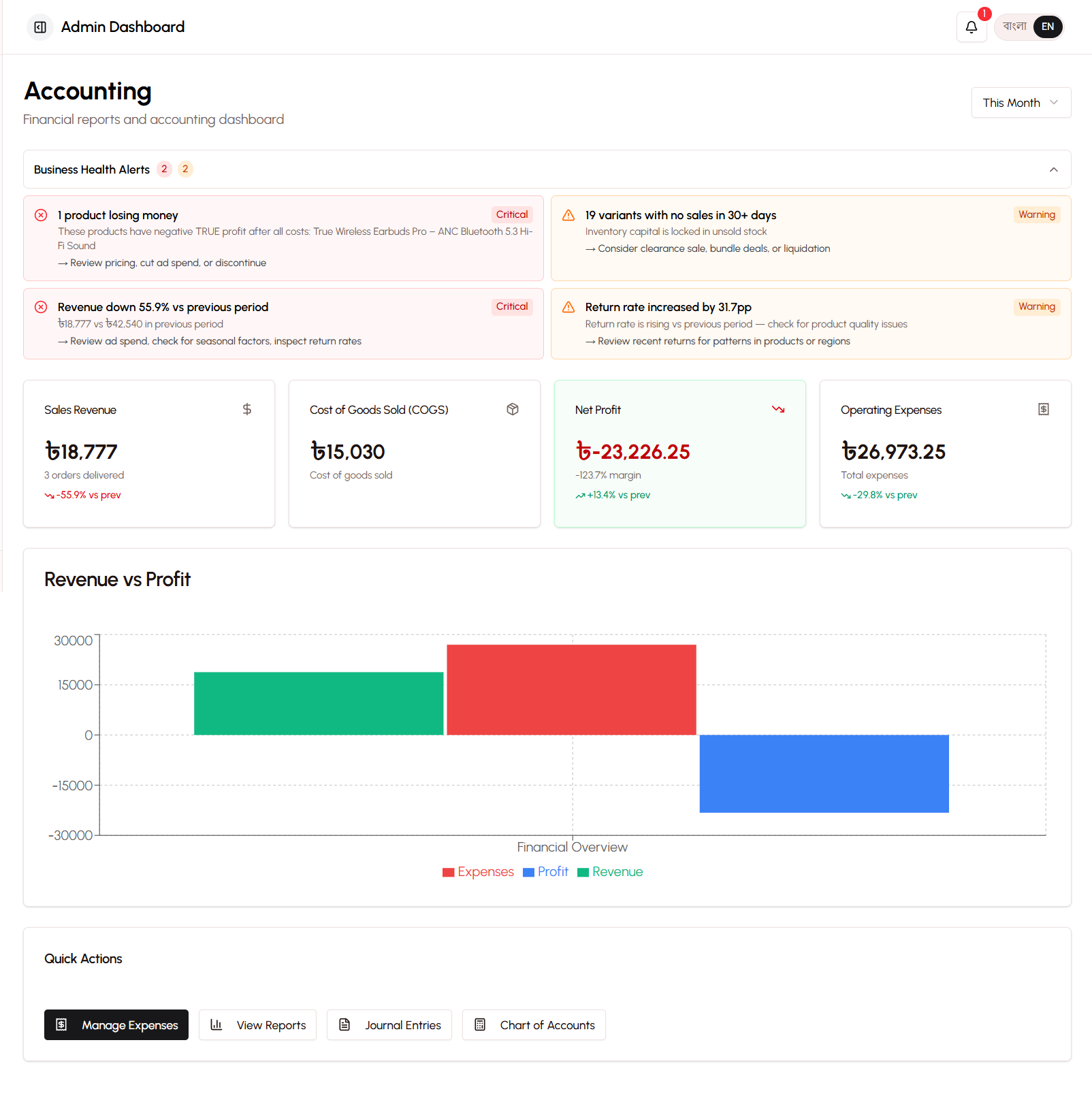
- 4 KPI Cards on dashboard showing key metrics
- Simple terminology (Money In, Money Out, Profit, Cash Balance)
- Focus on actionable insights
- Minimal accounting jargon
- Streamlined reports
Dashboard KPIs:
- Money In - Total revenue from sales
- Money Out - Total expenses and costs
- Profit - How much you're actually making
- Cash Balance - Money available across all payment methods
Report Names:
- Profit Summary (instead of Profit & Loss Statement)
- Cash Tracker (instead of Cash Flow Statement)
- Product Earnings (instead of Product Profitability Analysis)
- Expense Breakdown (instead of Expense Report)
Who Should Use Basic Mode:
- Small business owners without accounting background
- Entrepreneurs focused on operations
- Anyone who finds accounting terminology confusing
- Users who want quick insights without complexity
Advanced Mode - For Accountants
Advanced Mode uses formal accounting terminology and provides complete financial statements.
Interface Features:
- 6 KPI Cards on dashboard with detailed metrics
- Formal accounting terms (Revenue, COGS, Operating Expenses, Net Income)
- Full Chart of Accounts access
- Complete financial statements (Balance Sheet, Trial Balance)
- Export capabilities (PDF and Excel)
- Account code visibility
Dashboard KPIs:
- Sales Revenue - Total income from operations
- Cost of Goods Sold - Direct product costs
- Gross Profit - Revenue minus COGS
- Operating Expenses - Business overhead costs
- Net Income - Bottom-line profit
- Current Assets - Cash and inventory value
Report Names:
- Profit & Loss Statement (P&L)
- Cash Flow Statement
- Balance Sheet
- Trial Balance
- Product Profitability Analysis
- Expense Report by Account
Who Should Use Advanced Mode:
- Professional accountants and bookkeepers
- Business owners with accounting education
- Users preparing formal financial statements
- Anyone needing detailed account-level information
- Businesses requiring audit trails
Terminology Differences
The same underlying data is presented with different labels:
| Basic Mode | Advanced Mode |
|---|---|
| Money In | Sales Revenue |
| Money Out | Total Expenses |
| Profit | Net Income |
| Cash Balance | Cash & Cash Equivalents |
| Product Cost | Cost of Goods Sold (COGS) |
| Business Expenses | Operating Expenses |
| Money Owed | Accounts Receivable |
| Inventory Value | Inventory Asset |
Feature Visibility Differences
Available in Both Modes:
- Profit & Loss reporting
- Cash Flow tracking
- Expense management
- Product profitability
- Order financial details
Advanced Mode Only:
- Balance Sheet
- Trial Balance
- Chart of Accounts editor
- Account code visibility
- Export to Excel
- Formal financial statement formatting
How to Switch Between Modes
- Go to Store Settings
- Find "Accounting Mode" section
- Select "Basic" or "Advanced"
- Save changes
- Interface immediately updates with new terminology and features
You can switch modes anytime without affecting your underlying financial data.
Chart of Accounts Overview
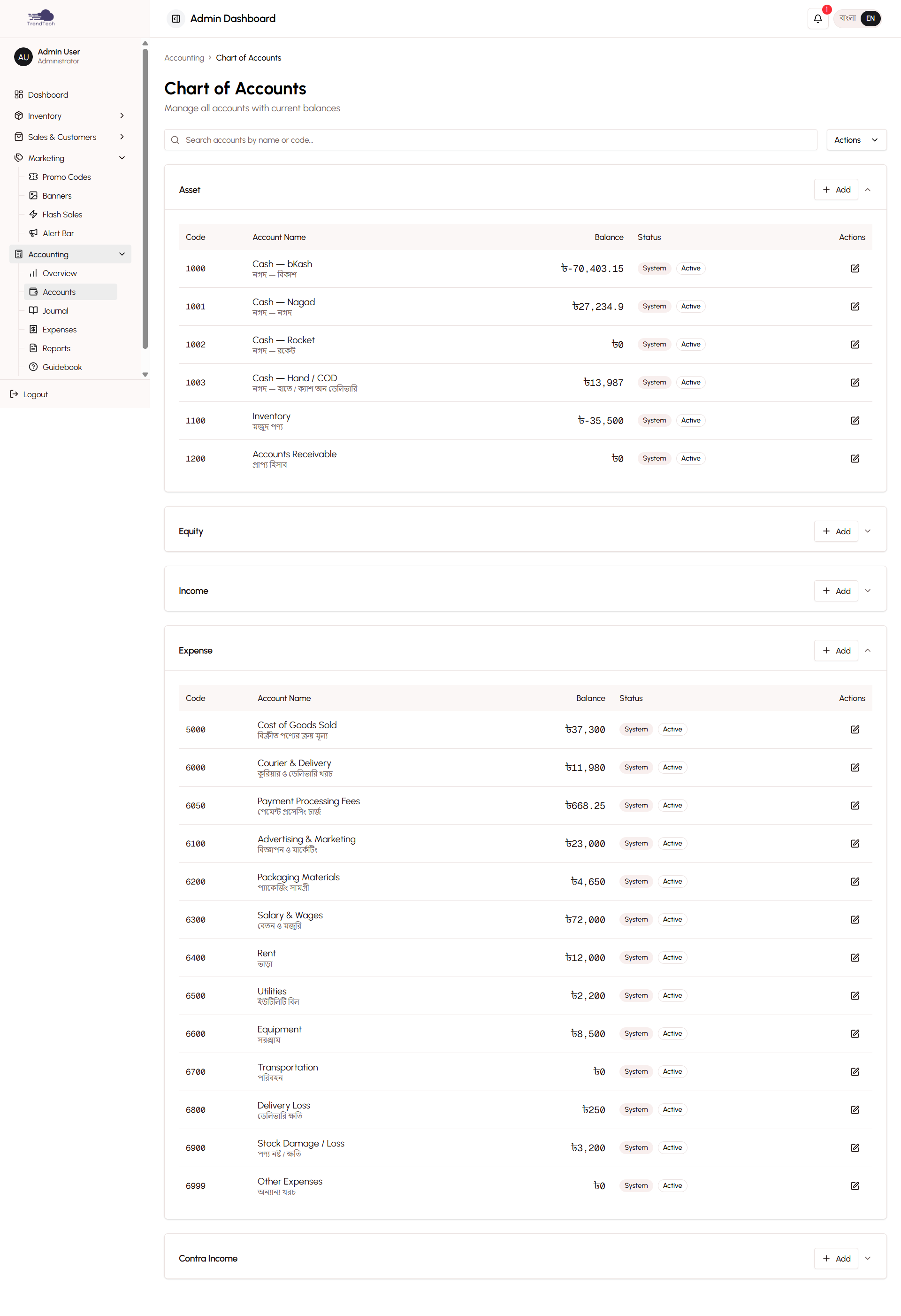
The Chart of Accounts is the foundation of the accounting system - a complete list of all financial accounts that track your business's money.
What Is a Chart of Accounts?
Think of it as a filing system for your business finances. Every transaction is categorized into specific accounts, making it easy to see where money comes from and where it goes.
The 21 Accounts
DokanGo uses 21 carefully designed accounts that cover all aspects of an e-commerce business:
Assets (6 Accounts)
Assets are things your business owns that have value.
1. Cash - bKash (Code: 1001)
- Tracks money in your bKash account
- Increases when customers pay via bKash
- Decreases when you pay expenses from bKash
2. Cash - Nagad (Code: 1002)
- Tracks money in your Nagad account
- Increases when customers pay via Nagad
- Decreases when you pay expenses from Nagad
3. Cash - Rocket (Code: 1003)
- Tracks money in your Rocket account
- Increases when customers pay via Rocket
- Decreases when you pay expenses from Rocket
4. Cash on Delivery (Code: 1004)
- Tracks COD payments collected by couriers
- Increases when COD orders are delivered
- Decreases when courier remits payment to you
5. Accounts Receivable (Code: 1100)
- Tracks money customers owe you
- Increases when orders are placed (unpaid)
- Decreases when customers pay
6. Inventory (Code: 1200)
- Tracks the value of products in stock
- Increases when you add inventory
- Decreases when products are sold (at cost price)
Income (3 Accounts)
Income accounts track money coming into your business.
7. Sales Revenue (Code: 4001)
- Tracks income from product sales
- Increases with every completed order
- This is your top-line revenue
8. Delivery Fee Income (Code: 4002)
- Tracks delivery charges collected from customers
- Separate from product revenue
- Helps analyze delivery profitability
9. Other Income (Code: 4003)
- Tracks miscellaneous income
- Rarely used in typical operations
- Available for special situations
Expenses (12 Accounts)
Expense accounts track money going out of your business.
10. Cost of Goods Sold - COGS (Code: 5001)
- Tracks the cost of products you sold
- Automatically calculated from frozen cost prices
- Key metric for gross profit calculation
11. Delivery Loss (Code: 5002)
- Tracks non-recoverable delivery fees from returns and cancellations
- Automatically calculated when resolutions are completed
- Important for TRUE profitability
12. Advertising & Marketing (Code: 6001)
- Tracks ad spend on Facebook, Instagram, Google, etc.
- Used for ROAS (Return on Ad Spend) calculations
- Critical for marketing effectiveness analysis
13. Packaging Materials (Code: 6002)
- Tracks cost of boxes, bags, tape, labels, etc.
- Helps calculate true fulfillment costs
14. Salary & Wages (Code: 6003)
- Tracks employee compensation
- Includes full-time, part-time, and contract workers
15. Rent Expense (Code: 6004)
- Tracks office, warehouse, or shop rent
- Fixed monthly expense
16. Utilities (Code: 6005)
- Tracks electricity, water, internet, phone bills
- Regular operating expenses
17. Equipment Purchase (Code: 6006)
- Tracks computers, furniture, tools, machinery
- One-time or infrequent purchases
18. Transportation (Code: 6007)
- Tracks vehicle costs, fuel, public transport for business
- Delivery-related transport goes here
19. Courier Charges (Code: 6008)
- Tracks fees paid to courier services (Steadfast, etc.)
- Automatically recorded for Steadfast orders
- Manual entry for other couriers
20. Payment Processing Fee (Code: 6009)
- Tracks fees charged by payment gateways
- Currently minimal (manual payments have no fees)
- Future-proofing for gateway integration
21. Miscellaneous Expense (Code: 6010)
- Tracks expenses that don't fit other categories
- Catch-all for unusual or one-time costs
Equity (1 Account)
22. Owner's Equity (Code: 3001)
- Tracks the owner's investment in the business
- Automatically calculated as Assets - Liabilities
- Represents your ownership stake
Auto-Update Triggers
Each account updates automatically based on specific business actions:
When an order is placed:
- Accounts Receivable increases (customer owes money)
- Sales Revenue increases (you made a sale)
- Delivery Fee Income increases (if delivery fee charged)
When payment is verified:
- Cash account increases (bKash/Nagad/Rocket based on payment method)
- Accounts Receivable decreases (customer paid)
When an order is delivered:
- COGS increases (cost of products sold)
- Inventory decreases (products left your stock)
When an expense is recorded:
- Appropriate expense account increases (based on category)
- Cash account decreases (based on payment method)
When a return is completed:
- Sales Revenue decreases (sale is reversed)
- COGS decreases (cost is reversed)
- Inventory increases (products back in stock)
- Delivery Loss increases (non-recoverable delivery fee)
This automatic updating ensures your financial records are always accurate and current.
Integration with Orders and Expenses
The accounting system is deeply integrated with your operational activities.
How Orders Create Accounting Entries
Every order triggers a series of automatic accounting entries as it moves through its lifecycle.
Order Placed (Pending Status):
Accounts Receivable +1,500 BDT (customer owes money)
Sales Revenue +1,400 BDT (product sales)
Delivery Fee Income +100 BDT (delivery charge)
Payment Verified (Confirmed Status):
Cash - bKash +1,500 BDT (payment received)
Accounts Receivable -1,500 BDT (customer paid)
Order Delivered:
COGS +800 BDT (cost of products sold)
Inventory -800 BDT (products left stock)
Net Result:
- Cash increased by 1,500 BDT
- Revenue recorded at 1,500 BDT
- Cost recorded at 800 BDT
- Profit: 700 BDT (1,500 - 800)
How Expenses Create Accounting Entries
When you record an expense, the system automatically creates the appropriate entries.
Example: Facebook Ad Spend
Advertising & Marketing +500 BDT (expense incurred)
Cash - bKash -500 BDT (payment made)
Example: Packaging Materials
Packaging Materials +200 BDT (expense incurred)
Cash - Nagad -200 BDT (payment made)
Connection Between Inventory and Accounting
Inventory value is continuously tracked and integrated with accounting.
When you add a product with cost price 500 BDT and quantity 10:
Inventory +5,000 BDT (10 × 500)When you sell 3 units:
Inventory -1,500 BDT (3 × 500)
COGS +1,500 BDT (cost of goods sold)
The frozen cost price at checkout ensures accurate profit tracking even if you later update product costs.
Real-Time Synchronization
All accounting updates happen instantly:
- Order confirmed → Cash and revenue update immediately
- Expense recorded → Accounts update in real-time
- Return completed → Adjustments process instantly
- Reports always show current data (no delay or batch processing)
This real-time synchronization means you can check your financial position anytime and trust the numbers are accurate.
Benefits and Use Cases
Benefits for Non-Accountant Business Owners
Save Time - No manual bookkeeping means more time for growing your business.
Reduce Errors - Automatic entries eliminate human mistakes and calculation errors.
Understand Finances - Simple language (Basic Mode) makes financial data accessible.
Make Better Decisions - Real-time insights help you respond quickly to opportunities and problems.
Reduce Costs - Minimize or eliminate bookkeeping and accounting expenses.
Stay Compliant - Accurate records make tax preparation and audits easier.
Track Profitability - Know exactly how much you're making on every product and order.
Use Cases for Accountants and Bookkeepers
Formal Financial Statements - Generate Balance Sheets, P&L, and Cash Flow statements instantly.
Audit Trail - Every transaction is tracked with timestamps and source references.
Account-Level Detail - Drill down into any account to see all transactions.
Export Capabilities - Export reports to Excel for further analysis or client presentations.
Multi-Client Management - Manage accounting for multiple stores efficiently.
Tax Preparation - All data organized and ready for tax filing.
Financial Analysis - Use detailed reports for business advisory services.
Reconciliation - Match accounting records with bank statements easily.
Accuracy and Audit Trail Advantages
Perfect Accuracy:
- No manual entry errors
- Automatic calculations always correct
- Balanced books guaranteed (debits always equal credits)
Complete Audit Trail:
- Every entry linked to source transaction (order, expense, return)
- Timestamps on all entries
- User attribution (who created the transaction)
- Immutable history (entries can't be altered after creation)
Compliance Ready:
- Organized records for tax authorities
- Clear documentation for audits
- Proper categorization of income and expenses
- Accurate inventory valuation
Getting Started
For Business Owners (Basic Mode)
- Go to Store Settings
- Set Accounting Mode to "Basic"
- Navigate to Dashboard to see your 4 key metrics
- Check "Profit Summary" report to understand your earnings
- Review "Cash Tracker" to see money flow
- Use "Product Earnings" to identify your most profitable items
For Accountants (Advanced Mode)
- Go to Store Settings
- Set Accounting Mode to "Advanced"
- Review the Chart of Accounts to understand account structure
- Generate a Trial Balance to verify system balance
- Review Profit & Loss Statement for income statement
- Check Balance Sheet for financial position
- Export reports to Excel for detailed analysis
No Setup Required
The accounting system works automatically from day one:
- No initial balances to enter
- No account configuration needed
- No manual entries required
- Just start taking orders and recording expenses
Related Topics
- Expense Tracking - Learn how to record business expenses
- Profitability Reports - Understand TRUE profit analysis
- Financial Reports - Explore all 20+ available reports
- Order Management - See how orders create accounting entries