First Steps
Congratulations on completing the setup wizard! Your store is now configured and ready to accept orders. This guide walks you through the essential tasks to get your store up and running with your first products, categories, and test orders.
After Setup Completion
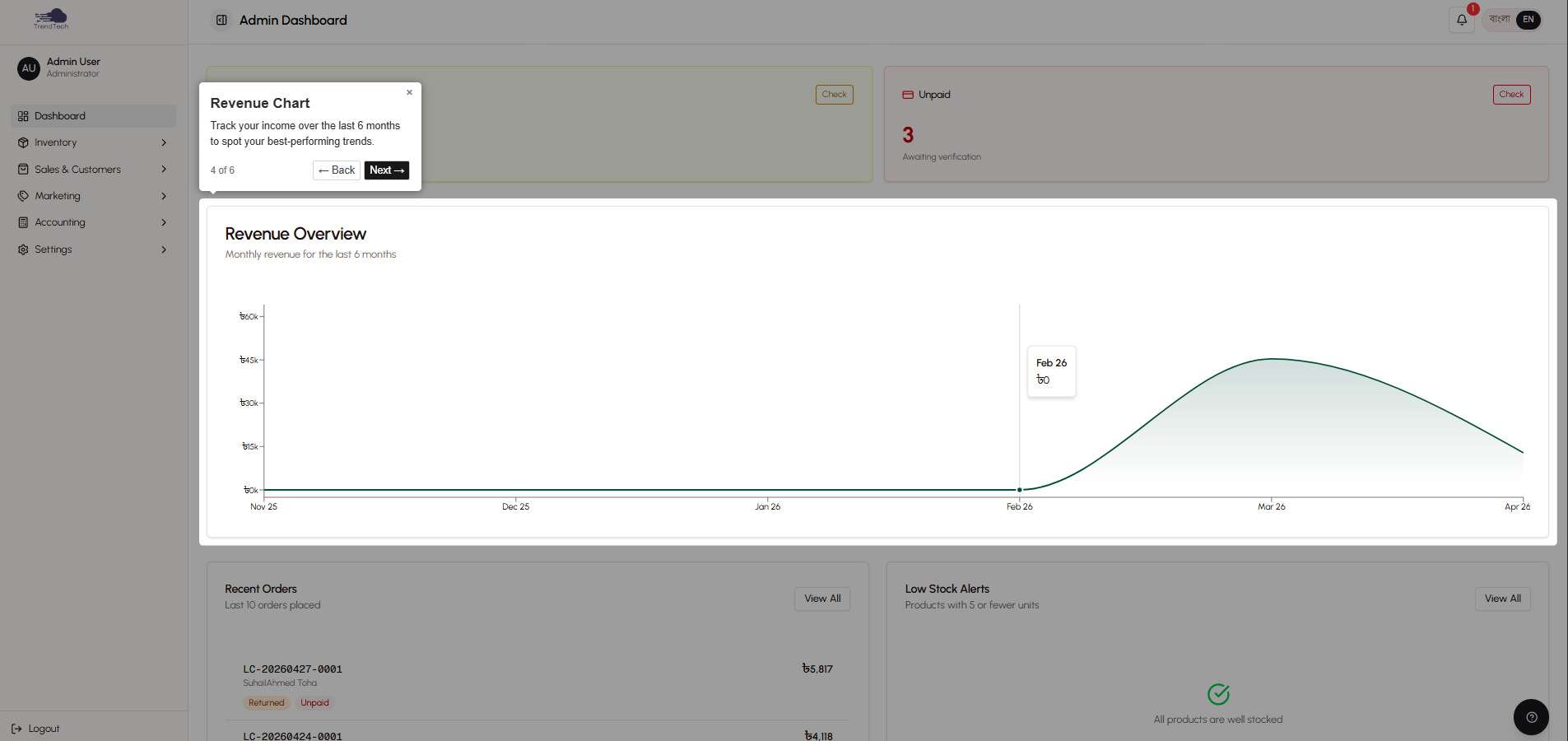
Once you finish the setup wizard, you'll land on your admin dashboard. This is your command center for managing products, orders, customers, and all other aspects of your store. Don't worry if it looks overwhelming at first—the platform includes guided tours that explain each section.
What's Next?
To start selling, you need to:
- Add your first product
- Create product categories
- Configure payment methods (if not done in setup)
- Test the checkout process
- Share your store link with customers
Let's walk through each of these steps.
Adding Your First Product
Products are the heart of your store. Adding your first product is straightforward and requires no technical knowledge.
Navigate to Products
From the admin dashboard, click on Products in the sidebar or navigation menu. You'll see an empty product list with an Add Product button.
Fill in Product Details
Click Add Product to open the product creation form. You'll need to provide:
Basic Information
- Product Name (English): The name customers will see when browsing in English
- Product Name (Bangla): The name shown when customers switch to Bangla
- Description (English): Detailed information about the product in English
- Description (Bangla): The same information translated to Bangla
Pricing
- Regular Price: The standard selling price
- Sale Price (optional): A discounted price if you're running a promotion
- Cost Price (optional): What you paid for the product—used for profitability calculations
Inventory
- Stock Quantity: How many units you have available
- SKU (optional): Your internal product code for tracking
Images
- Upload at least one product image
- You can add multiple images that customers can browse
- Drag and drop to reorder images
Categorization
- Select a category (you'll create categories in the next step)
- Add tags to help with search and organization
Visibility
- Featured: Toggle this on to highlight the product on your homepage
- Published: Toggle this on to make the product visible to customers
Product Variants (Optional)
If your product comes in different colors, sizes, or options, you can add variants:
- Click Add Variant to create options like "Red - Small" or "Blue - Large"
- Each variant can have its own price and stock quantity
- Variants help customers choose exactly what they want
Save Your Product
Once you've filled in the details, click Save Product. Your first product is now in your catalog!
Creating Categories
Categories help customers find products by organizing your catalog into logical groups. For example, if you sell clothing, you might have categories like "Men's Shirts," "Women's Dresses," and "Accessories."
Navigate to Categories
From the admin panel, go to Products → Categories (or find Categories in the sidebar).
Add a Category
Click Add Category and provide:
- Category Name (English): The category name in English
- Category Name (Bangla): The category name in Bangla
- Description (optional): A brief explanation of what's in this category
- Image (optional): A banner or icon representing the category
Organize Your Catalog
Create categories that make sense for your business:
- Fashion Store: Men's Wear, Women's Wear, Kids' Clothing, Accessories
- Electronics Store: Phones, Laptops, Accessories, Smart Devices
- Cosmetics Store: Skincare, Makeup, Haircare, Fragrances
You can always add more categories as your product range grows.
Assign Products to Categories
After creating categories, go back to your products and assign them to the appropriate category. This makes it easy for customers to browse by product type.
Configuring Payment Methods
If you didn't complete payment configuration during the setup wizard, or if you want to update your payment details, here's how:
Navigate to Store Settings
Go to Settings → Store Settings in the admin panel.
Payment Configuration Section
Scroll to the Payment Details section where you can:
Mobile Wallet Numbers
- Enter your bKash, Nagad, and Rocket account numbers
- You don't need all three—just the ones you want to accept
Payment Instructions
- Write clear instructions for customers in both English and Bangla
- Explain how to send money and what information to provide
- Example: "Send payment to our bKash number using Send Money. Then enter your Transaction ID."
Cash on Delivery (COD)
- Enable or disable COD as a payment option
- Set a COD fee if you want to charge extra for cash payments
- Choose between a fixed fee (e.g., 50 Taka) or percentage (e.g., 2%)
Save Your Changes
Click Save Settings to apply your payment configuration. Customers will now see these payment options during checkout.
Testing the Checkout Process
Before sharing your store with customers, test the entire checkout process to ensure everything works correctly.
Visit Your Storefront
Click View Store in the admin panel to open your customer-facing storefront in a new tab. This is what your customers will see.
Browse and Add to Cart
- Browse your product catalog
- Click on a product to view details
- Select any variants (color, size) if applicable
- Click Add to Cart
- View your cart to see the items
Complete Checkout
Click Proceed to Checkout and fill in the checkout form:
- Enter a test name and phone number
- Provide a shipping address
- Select a payment method
- Place the order
Review Payment Instructions
After placing the order, you'll see payment instructions. This is what your customers will see. Make sure the instructions are clear and your payment numbers are correct.
Verify in Admin Panel
Go back to the admin panel and check the Orders section. You should see your test order listed as Pending (waiting for payment verification).
Test Payment Verification
In the order details, you can:
- Mark the payment as verified
- Change the order status to Confirmed
- See how the order progresses through different statuses
This test run helps you understand the customer experience and ensures your store is working properly.
Sharing Your Store Link
Once you're satisfied with your products and checkout process, it's time to share your store with customers.
Find Your Store URL
Your store URL is typically in this format:
https://yourdomain.comYou can find the exact URL by clicking View Store from the admin panel.
Share on Social Media
Promote your store on the platforms where your customers already follow you:
- Facebook: Post your store link with product images
- Instagram: Add the link to your bio and stories
- WhatsApp: Share the link in your status or directly with customers
Create Marketing Content
To drive traffic to your store:
- Take high-quality product photos
- Write compelling product descriptions
- Announce special offers or flash sales
- Highlight the convenience of online ordering
Encourage Customers to Browse
Let your customers know they can:
- Browse products in English or Bangla
- Order without creating an account
- Pay via bKash, Nagad, Rocket, or Cash on Delivery
- Track their orders using just their phone number
Understanding the Dashboard
Your admin dashboard provides a quick overview of your store's performance. Here's what you'll see:
Quick Statistics
- Total Orders: How many orders you've received
- Revenue: Total sales amount
- Customers: Number of unique customers
- Products: Items in your catalog
Revenue Chart
A visual graph showing your sales over time. This helps you identify trends and busy periods.
Recent Orders
A list of your most recent orders with their status. Click any order to view full details.
Low Stock Alerts
Products running low on inventory. This helps you restock before items sell out.
Guided Tours
Look for the Start Tour button to get interactive walkthroughs of different features. These tours explain how to use each section of the admin panel.
Next Steps
Now that you've completed the first steps, you're ready to:
- Add More Products: Build out your complete product catalog
- Create Promotional Campaigns: Set up flash sales or promo codes
- Process Orders: Manage incoming orders and fulfill them
- Track Finances: Monitor profitability and expenses
- Engage Customers: Build relationships and encourage repeat purchases
Tips for Success
Start Small
Don't feel pressured to add your entire inventory at once. Start with your best-selling products and expand gradually.
Use High-Quality Images
Product photos significantly impact sales. Use clear, well-lit images that show products from multiple angles.
Write Detailed Descriptions
Help customers make informed decisions by providing complete product information, including dimensions, materials, and care instructions.
Test Regularly
Periodically place test orders to ensure your checkout process remains smooth and your payment instructions are up to date.
Monitor Your Dashboard
Check your dashboard daily to stay on top of new orders, low stock alerts, and customer inquiries.
Leverage Bilingual Content
Take advantage of the bilingual system by providing quality translations. This expands your potential customer base.
Common Questions
Can I edit products after creating them?
Yes! Go to the Products page, find the product you want to edit, and click the edit icon. Make your changes and save.
What if I make a mistake during setup?
All setup wizard settings can be updated from the Store Settings page. Nothing is permanent.
How do I know when I receive an order?
Orders appear in your admin panel immediately. You can also configure email notifications in the settings.
Can customers really order without an account?
Yes, guest checkout allows customers to order using just their name, phone number, and address. They can create an account later if they want.
What happens if a product goes out of stock?
Depending on your settings, customers either can't add it to their cart or can place a pre-order. You'll see low stock alerts on your dashboard.
Related Topics
- Overview - Understand the platform's purpose and capabilities
- Setup Wizard - Review the initial configuration process
- Product Management - Learn advanced product features
- Order Management - Understand order processing
- Payment System - Deep dive into payment workflows
Support
The platform is designed to be intuitive, but if you need help:
- Guided Tours: Available throughout the admin panel
- Tooltips: Hover over any field or button for contextual help
- Bilingual Help: All help content is available in English and Bangla
You're now ready to start selling! Add products, share your store link, and watch the orders come in.