Order Management
The order management system provides complete control over your order lifecycle, from initial placement through delivery. Whether orders come through your online store or via phone and WhatsApp, you can track, process, and fulfill them all from a unified interface designed for efficiency and clarity.
Order Lifecycle Overview
Every order moves through a series of statuses that reflect its journey from placement to completion. Understanding these statuses helps you manage customer expectations and maintain smooth operations.
Order Statuses Explained
Pending
- Initial status when a customer places an order
- Order is awaiting payment verification (for prepaid orders)
- Order is awaiting admin review and confirmation
- Appears in the Unpaid Orders Queue if payment hasn't been verified
Confirmed
- Payment has been verified and accepted
- Order is ready for packaging and fulfillment
- Inventory is deducted at this stage
- Accounting entries are recorded
- Customer receives confirmation notification
Shipped
- Order has been packaged and handed to the courier
- Tracking code is generated (if using courier integration)
- Customer can track delivery progress
- Order is in transit to the delivery address
Delivered
- Courier has successfully delivered the order to the customer
- Payment collected (for Cash on Delivery orders)
- Order is complete
- Final accounting entries are recorded
Cancelled
- Order was cancelled before shipping
- Can be cancelled by admin or due to payment issues
- Inventory is restored if it was previously deducted
- Cancellation reason can be recorded in admin notes
Returned
- Order was shipped but returned by the customer or courier
- Handled through the Resolution system for proper accounting
- Inventory may be restored depending on item condition
- Return costs and losses are tracked separately
Status Transitions
Orders flow through statuses in a logical sequence, though not every order follows the complete path:
Standard Flow (Prepaid Orders)
- Pending → Customer places order, awaits payment verification
- Confirmed → Admin verifies payment and confirms order
- Shipped → Admin packages and sends order to courier
- Delivered → Courier delivers order to customer
Cash on Delivery Flow
- Pending → Customer places COD order
- Confirmed → Admin reviews and confirms order (no payment verification needed)
- Shipped → Order sent to courier for delivery and payment collection
- Delivered → Courier delivers and collects payment
Cancellation Path
- Pending → Cancelled (before payment verification or confirmation)
- Confirmed → Cancelled (after confirmation but before shipping)
Return Path
- Shipped or Delivered → Returned (handled via Resolution system)
Order List and Filtering
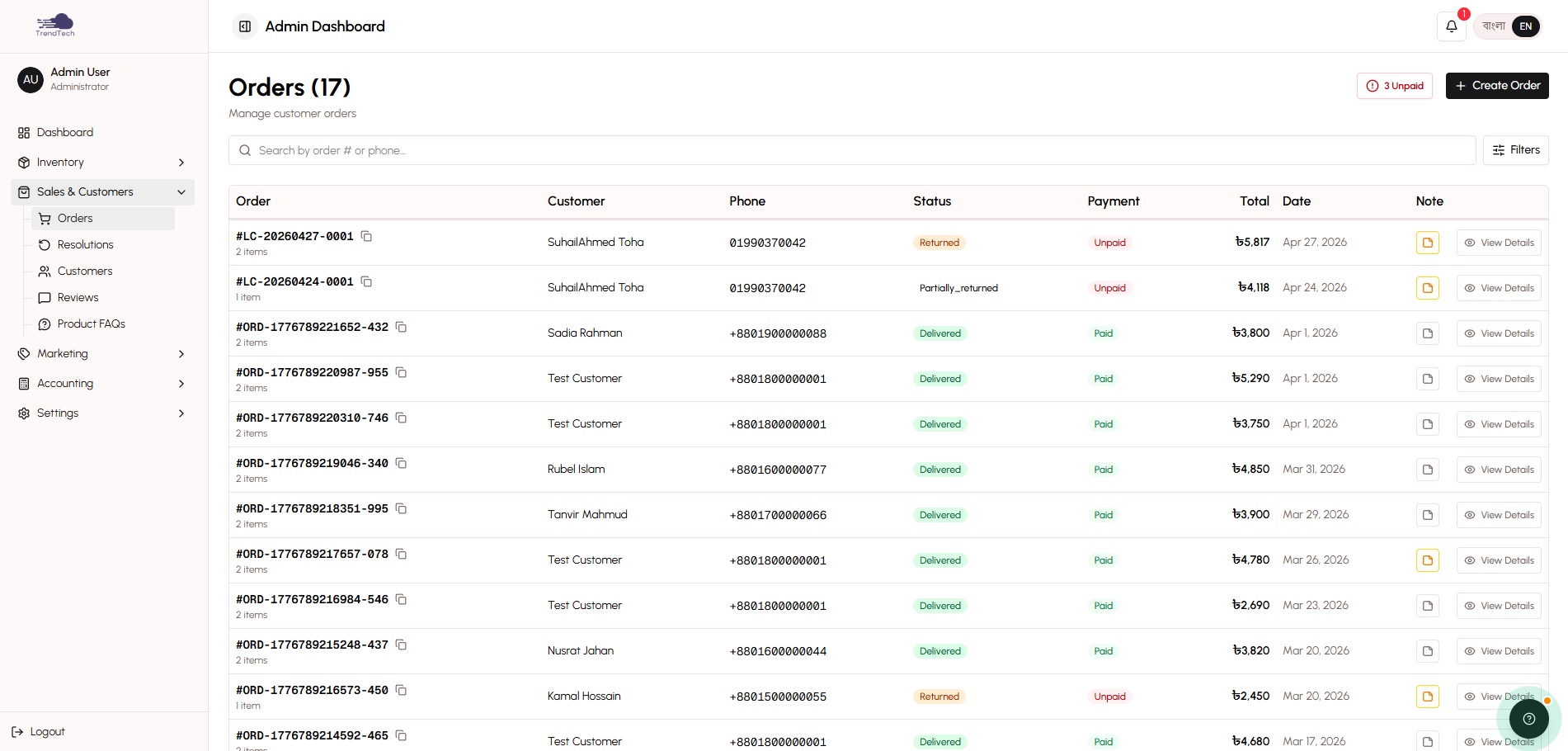
The order list provides a comprehensive view of all orders with powerful filtering and search capabilities to help you find exactly what you need.
Order List Interface
Each order in the list displays:
- Order Number — Unique identifier (e.g., ORD-001)
- Customer Information — Name and phone number
- Order Total — Total amount including all charges
- Status Badge — Color-coded current status
- Payment Badge — Payment status (Paid/Unpaid)
- Order Date — When the order was placed
Filtering Options
By Order Status
- View all orders or filter by specific status
- Pending, Confirmed, Shipped, Delivered, Cancelled, Returned
- Quick access to orders requiring action
By Payment Status
- Paid — Payment verified and recorded
- Unpaid — Awaiting payment verification
- Dedicated Unpaid Orders Queue for payment processing
Search Functionality
- Search by order number for direct access
- Search by customer name to find all orders from a specific customer
- Search by phone number to track customer order history
Advanced Sidebar Filters
- Combine multiple filter criteria
- Filter by date range
- Filter by payment method (bKash, Nagad, Rocket, COD)
- One-click filter reset
Unpaid Orders Queue
A dedicated view for managing payment verification efficiently:
Quick Access
- Prominent badge shows count of unpaid orders
- One-click access from order list
- Focused view eliminates distractions
Payment Verification Workflow
- Customer provides Transaction ID after payment
- Order appears in Unpaid Orders Queue
- Admin checks mobile wallet transaction history
- Admin verifies Transaction ID and amount match
- Admin marks payment as verified
- Admin confirms order to move it to fulfillment
Batch Processing
- Process multiple payments in one session
- Verify payments from your mobile wallet app
- Mark multiple orders as paid efficiently
- Confirm orders after verification
Order Detail View
The order detail page provides complete information about a single order, with all the tools you need to manage it effectively.
Order Information Sections
Order Items
- Product thumbnails and names (in both English and Bangla)
- Quantity and price per item
- Line totals for each item
- Subtotal, discounts, and order total
- Applied promo code (if any)
Customer and Delivery Information
- Customer name and phone number
- Complete delivery address (district, city, area, street address)
- Address snapshot from order placement (never changes)
- Customer notes or special instructions
Payment Information
- Payment method selected (bKash, Nagad, Rocket, COD)
- Payment status (Paid/Unpaid)
- Transaction ID (if provided)
- Payment verification status
- COD fee (if applicable)
Courier and Tracking
- Courier service name (e.g., Steadfast)
- Tracking code for customer reference
- Current courier status
- Delivery progress updates
- Fraud check results (if performed)
Status Timeline
- Visual progress indicator showing order journey
- Pending → Confirmed → Shipped → Delivered
- Current status highlighted
- Timestamps for each status change
Admin Notes
- Internal notes visible only to admins
- Record payment verification details
- Note customer communications
- Track special handling instructions
- Document any issues or resolutions
Order Actions
From the order detail page, you can:
- Update Order Status — Move order to next stage
- Mark Payment as Verified — Confirm payment received
- Confirm Order — Advance from Pending to Confirmed
- Send to Courier — Create consignment with Steadfast
- Update Tracking Information — Add or edit tracking code
- Cancel Order — Cancel before shipping
- Create Resolution — Handle returns or issues
- Add Admin Notes — Record internal information
- Contact Customer — Phone number displayed for easy calling
Manual Order Creation
For sales made through phone calls, WhatsApp, Facebook Messenger, or in-person, you can create orders directly in the admin panel. This ensures all sales are tracked in one system regardless of where they originate.
When to Use Manual Order Creation
Phone Orders
- Customer calls to place an order
- You take their information and product selection
- Create order on their behalf
WhatsApp and Social Media Sales
- Customer messages you on WhatsApp or Facebook
- You discuss products and finalize order details
- Create order to track and fulfill
In-Person Sales
- Customer visits your physical location
- You process the sale through your system
- Maintain unified inventory and accounting
Repeat Customer Orders
- Regular customers with saved information
- Quick reorder of previous purchases
- Streamlined order entry
Manual Order Creation Process
Step 1: Access Order Creation
- Navigate to Orders section in admin panel
- Click "Create Order" or "New Order" button
- Order creation form opens
Step 2: Add Products
- Search for products from your catalog
- Select product variants (color, size, options)
- Specify quantity for each item
- Add multiple products to the order
- System calculates line totals automatically
Step 3: Enter Customer Information
- Customer name (required)
- Phone number (required, Bangladesh format)
- Email address (optional)
- System checks for existing customer records
- Links order to customer account if found
Step 4: Enter Delivery Address
- District (required)
- City or Upazila (required)
- Area or Thana (required)
- Street address (required)
- Address is saved as snapshot for this order
Step 5: Select Payment Method
- Choose bKash, Nagad, Rocket, or Cash on Delivery
- For prepaid: order starts as Pending (awaiting payment)
- For COD: order starts as Pending (ready to confirm)
- COD fee applied automatically if configured
Step 6: Review and Create
- Review all order details
- Check product selection and quantities
- Verify customer information and address
- Confirm order total is correct
- Click "Create Order" to finalize
Step 7: Post-Creation Actions
- Order appears in order list with Pending status
- Share order number with customer for tracking
- For prepaid: provide payment instructions to customer
- For COD: confirm order and proceed to fulfillment
Manual Order Benefits
Unified System
- All orders in one place regardless of source
- Consistent inventory tracking
- Complete accounting records
- Unified customer history
Flexibility
- Serve customers who prefer phone orders
- Capture social media sales
- Handle special requests and customizations
- Process bulk or wholesale orders
Customer Service
- Assist customers who have difficulty with online checkout
- Provide personalized service
- Build customer relationships
- Handle complex orders with guidance
Payment Verification and Status Management
Proper payment verification ensures you only ship orders that have been paid for, while efficient status management keeps orders moving through your fulfillment process.
Payment Verification Process
For bKash, Nagad, and Rocket Orders
-
Customer Completes Payment
- Customer sends money via their mobile wallet
- Customer receives Transaction ID from wallet app
- Customer enters Transaction ID on your website
-
Order Enters Unpaid Queue
- Order appears in Unpaid Orders Queue
- Transaction ID is visible to admin
- Order remains in Pending status
-
Admin Verification
- Open your mobile wallet app
- Check transaction history
- Find transaction matching the Transaction ID
- Verify amount matches order total
- Verify transaction date is recent
- Confirm sender phone number (if visible)
-
Mark as Verified
- Click "Mark as Paid" in admin panel
- Payment status changes to Paid
- Order ready for confirmation
-
Confirm Order
- Change order status from Pending to Confirmed
- Inventory is deducted
- Accounting entries recorded
- Order moves to fulfillment workflow
For Cash on Delivery Orders
COD orders skip payment verification since payment is collected at delivery:
- Review Order — Check order details for accuracy
- Confirm Order — Change status from Pending to Confirmed
- Fulfill Order — Package and ship as normal
- Courier Collects Payment — Payment collected at delivery
- Mark as Delivered — Update status after delivery confirmation
Status Management Best Practices
Keep Status Current
- Update order status as soon as actions are completed
- Don't let orders sit in outdated statuses
- Customers rely on status for delivery expectations
- Accurate status enables proper reporting
Use Status Transitions Correctly
- Follow the logical status flow
- Don't skip statuses (e.g., Pending directly to Delivered)
- Each status change triggers important system actions
- Incorrect transitions can cause inventory or accounting issues
Communicate Status Changes
- Customers receive notifications when status changes
- Provide tracking codes when marking as Shipped
- Confirm delivery with customers when possible
- Update customers about any delays or issues
Handle Exceptions Properly
- Use Cancellation for orders that won't be fulfilled
- Use Resolution system for returns and issues
- Don't change status to hide problems
- Document exceptions in admin notes
Payment Status Indicators
Unpaid
- Payment not yet verified
- Order in Unpaid Orders Queue
- Cannot proceed to shipping
- May be cancelled if payment not received
Paid
- Payment verified and recorded
- Order can proceed through fulfillment
- Revenue recorded in accounting
- Customer charged successfully
Courier Integration Actions
When using Steadfast courier integration, you can perform several actions directly from the order detail page to streamline delivery management.
Send to Steadfast
What It Does
- Creates a consignment in Steadfast system
- Generates tracking code automatically
- Registers order for pickup
- Updates order with courier information
When to Use
- After confirming the order
- When package is ready for courier pickup
- Before marking order as Shipped
Process
- Click "Send to Steadfast" button
- System sends order details to Steadfast API
- Steadfast creates consignment
- Tracking code returned and saved to order
- Order status can be updated to Shipped
Sync Status
What It Does
- Fetches latest delivery status from Steadfast
- Updates order with current courier status
- Synchronizes tracking information
- Updates order status if delivery is complete
When to Use
- To check delivery progress
- When customer asks about order status
- To update multiple orders at once
- Regularly to keep information current
Automatic Synchronization
- System can sync statuses automatically
- Checks for updates on non-terminal orders
- Updates order status based on courier status
- Notifies customers of delivery completion
Fraud Check
What It Does
- Checks customer phone number against Steadfast database
- Returns delivery history for that phone number
- Shows total parcels, delivered count, cancelled count
- Flags any fraud reports
When to Use
- Before confirming high-value orders
- When customer information seems suspicious
- For new customers with large orders
- To verify customer reliability
Fraud Check Results
- Total parcels sent to this phone number
- Successfully delivered parcels
- Cancelled or refused parcels
- Fraud reports or warnings
- Helps you make informed decisions about order confirmation
Balance Check
What It Does
- Checks your current balance with Steadfast
- Shows available credit
- Displays recent transactions
- Helps ensure you can create consignments
When to Use
- Before sending multiple orders to courier
- When planning bulk shipments
- To verify account status
- Troubleshooting consignment creation issues
Manual Courier Entry
For orders delivered by other courier services or your own delivery team:
Enter Courier Information Manually
- Courier service name
- Tracking code or reference number
- Delivery status updates
- Maintains consistent tracking for all orders
Benefits of Comprehensive Order Management
For Your Business
Operational Efficiency
- All orders in one unified system
- Quick filtering and search
- Batch payment verification
- Streamlined fulfillment workflow
Accurate Tracking
- Real-time order status
- Complete order history
- Audit trail for all changes
- Reliable reporting data
Financial Control
- Payment verification before shipping
- Accurate revenue recording
- Proper inventory deduction
- Complete accounting integration
Customer Service
- Quick access to order information
- Easy communication with customers
- Proactive issue resolution
- Professional order management
For Your Customers
Transparency
- Clear order status at all times
- Tracking codes for delivery monitoring
- Payment confirmation
- Delivery updates
Reliability
- Orders processed systematically
- No orders lost or forgotten
- Consistent fulfillment process
- Professional experience
Flexibility
- Multiple ways to place orders (online, phone, WhatsApp)
- Various payment options
- Order tracking without account required
- Easy communication with merchant
Common Questions
Can I edit an order after it's been placed?
Order details like customer information and address are snapshots and shouldn't be changed after creation, as they represent the customer's intent at the time of purchase. However, you can:
- Add admin notes to document changes
- Cancel the order and create a new one if major changes are needed
- Use the Resolution system for post-shipping adjustments
What happens if I confirm an order before verifying payment?
The order will move to Confirmed status and inventory will be deducted, but the payment status will still show as Unpaid. You should:
- Verify payment before confirming orders
- Check the Unpaid Orders Queue regularly
- Only confirm COD orders without payment verification
How do I handle orders where the customer paid the wrong amount?
If the payment amount doesn't match the order total:
- Contact the customer to clarify
- Request additional payment if amount is too low
- Arrange refund if amount is too high
- Document the situation in admin notes
- Only confirm order once payment is correct
Can I change an order from COD to prepaid or vice versa?
The payment method is set at order creation and cannot be changed. If the customer wants to change payment methods:
- Cancel the original order
- Create a new order with the correct payment method
- Explain the change to the customer
What if a customer provides an incorrect Transaction ID?
If the Transaction ID doesn't match any transaction in your wallet:
- Contact the customer and ask them to verify the Transaction ID
- Request a screenshot of the transaction from their wallet app
- Check if they sent payment to the correct wallet number
- Verify they sent the correct amount
- Cancel the order if payment cannot be verified within a reasonable timeframe
How do I track which orders need action?
Use the filtering system to identify orders requiring attention:
- Unpaid Orders Queue — Orders awaiting payment verification
- Pending Status — Orders awaiting confirmation
- Confirmed Status — Orders ready for packaging and shipping
- Shipped Status — Orders in transit (check for delivery updates)
Related Topics
- Payment System — Learn about payment verification workflow
- Courier Integration — Understand delivery management
- Return & Resolution — Handle returns and order issues
- Order Processing — Master the admin workflow
- Order Fulfillment Flow — See the complete fulfillment process
Next Steps
Now that you understand order management, explore:
- Order Processing — Learn the admin interface for managing orders
- Courier Integration — Set up delivery management with Steadfast
- Complete Checkout Flow — Understand the customer's order placement journey