Complete Checkout Journey
This walkthrough follows a customer's complete journey from discovering your store to successfully placing an order. Understanding this flow helps you optimize each step for better conversion rates.
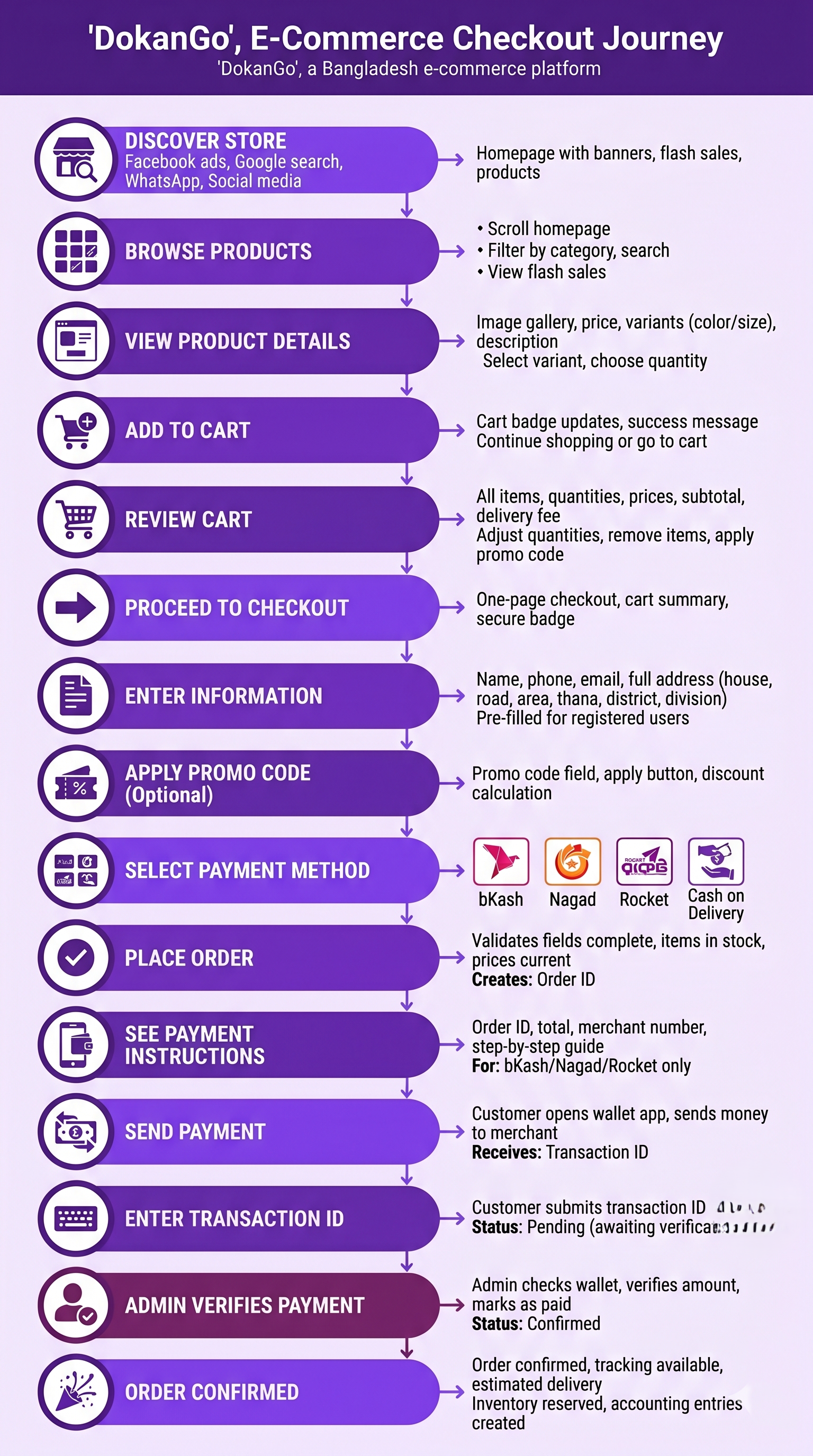
Step 1: Customer Discovers Your Store
The journey begins when a potential customer finds your store.
How They Find You:
- Facebook or Instagram ad
- Google search
- Direct link shared on WhatsApp
- Social media post
- Friend recommendation
First Impression:
- Homepage loads with banner carousel
- Flash sale section (if active)
- Featured products displayed
- Language toggle visible (English/Bangla)
Step 2: Customer Browses Products
The customer explores your product catalog.
Browsing Options:
- Scroll through homepage products
- Click category to filter
- Use search bar for specific items
- View flash sale products
Product Discovery:
- Product grid shows images, names, prices
- Sale prices displayed with original price crossed out
- "Out of Stock" badges prevent disappointment
- Quick view of product details
Step 3: Customer Views Product Details
The customer clicks a product to learn more.
Product Page Shows:
- Image gallery (multiple photos)
- Product name (in selected language)
- Current price (and sale price if applicable)
- Stock status
- Variant options (color, size, etc.)
- Detailed description
- Similar products
Customer Actions:
- Select variant (if applicable)
- Choose quantity
- Read description
- View additional images
Step 4: Customer Adds to Cart
The customer decides to purchase and adds the item to their cart.
Add to Cart:
- Click "Add to Cart" button
- Cart icon updates with item count
- Success message appears
- Option to continue shopping or go to cart
Cart Badge:
- Shows number of items
- Visible in header
- Clickable to view cart
Step 5: Customer Reviews Cart
The customer views their cart to review items before checkout.
Cart Page Shows:
- All items with images and names
- Selected variants
- Quantity (adjustable)
- Unit price and subtotal per item
- Cart total
- Delivery fee (if applicable)
- Option to apply promo code
Customer Can:
- Adjust quantities
- Remove items
- Continue shopping
- Proceed to checkout
Step 6: Customer Proceeds to Checkout
The customer clicks "Proceed to Checkout" to begin the purchase process.
Checkout Page Loads:
- One-page checkout design
- All information on single screen
- Progress indicator (if multi-step)
- Secure checkout badge
Cart Summary:
- Items being purchased
- Quantities and prices
- Subtotal
- Delivery fee
- Total amount
Step 7: Customer Enters Information
The customer fills out the checkout form.
Required Information:
Personal Details:
- Full name (English and/or Bangla)
- Phone number (for order tracking and delivery)
- Email address (if required by store settings)
Shipping Address:
- House/Building number
- Road/Street
- Area/Locality
- Thana
- District
- Division
Optional:
- Customer note (special instructions)
Smart Features:
- Registered users see pre-filled information
- Guest customers enter fresh information
- Address validation ensures completeness
Step 8: Customer Applies Promo Code (Optional)
If the customer has a promo code, they can apply it now.
Promo Code Process:
- Enter code in "Promo Code" field
- Click "Apply"
- System validates code
- Discount applies instantly
- Updated total displays
Validation:
- Valid code: Discount shown, total updated
- Invalid code: Error message displayed
- Expired code: Expiration notice shown
Step 9: Customer Selects Payment Method
The customer chooses how they want to pay.
Payment Options:
- bKash (manual payment)
- Nagad (manual payment)
- Rocket (manual payment)
- Cash on Delivery (if enabled)
Payment Method Details:
- Each method shows icon and name
- COD shows additional fee (if applicable)
- Selected method is highlighted
Step 10: Customer Places Order
The customer reviews everything and confirms the order.
Final Review:
- All information is visible
- Total amount is clear
- Payment method is confirmed
Place Order:
- Click "Place Order" button
- System validates:
- All required fields completed
- Items still in stock
- Prices haven't changed
- Promo code still valid
Order Creation:
- Order is created in system
- Order ID is generated
- Customer is redirected to confirmation page
Step 11: Customer Sees Payment Instructions
For manual payment methods (bKash, Nagad, Rocket), the customer sees detailed payment instructions.
Payment Instruction Screen Shows:
Order Confirmation:
- Order ID
- Order total
- Items ordered
Payment Instructions:
- Which mobile wallet to use
- Merchant's account number
- Exact amount to send
- Reference to include
Step-by-Step Guide:
- Open your bKash/Nagad/Rocket app
- Select "Send Money"
- Enter merchant number: [number]
- Enter amount: [exact amount]
- Complete the transaction
- Copy your transaction ID
- Return here and enter transaction ID
Transaction ID Entry:
- Field to enter transaction ID
- Submit button
- Link to order tracking page
Step 12: Customer Sends Payment
The customer follows the instructions and sends payment via their mobile wallet.
Customer Actions:
- Opens mobile wallet app
- Selects "Send Money"
- Enters merchant number
- Enters exact amount
- Confirms transaction
- Receives transaction ID from wallet app
Transaction ID:
- Unique identifier for the payment
- Needed for merchant to verify payment
- Customer must save this ID
Step 13: Customer Enters Transaction ID
The customer returns to the store and submits their transaction ID.
Submission Process:
- Customer enters transaction ID in the field
- Clicks "Submit Transaction ID"
- System saves transaction ID with order
- Confirmation message appears
- Customer can now track order
Order Status:
- Order status: Pending (awaiting payment verification)
- Customer can track order using phone number
- Customer receives order details
Step 14: Admin Verifies Payment
On the merchant side, the admin verifies the payment.
Admin Process:
- Admin checks unpaid orders queue
- Admin sees customer's transaction ID
- Admin checks mobile wallet for matching transaction
- Admin verifies amount matches order total
- Admin clicks "Mark as Paid"
- Admin clicks "Confirm Order"
Order Status Update:
- Order status changes to Confirmed
- Customer can see status update when tracking
- Order moves to fulfillment queue
Step 15: Order Confirmed
The order is now confirmed and ready for fulfillment.
Automatic Actions:
- Inventory is reserved
- Accounting entries are created
- Order appears in fulfillment queue
- Customer can track order progress
Customer Experience:
- Order status shows "Confirmed"
- Estimated delivery date displayed
- Tracking information available
- Customer can contact merchant if needed
Journey Complete
The customer has successfully completed the checkout journey. The order is now in the merchant's hands for fulfillment and delivery.
Key Success Factors:
Simplicity:
- One-page checkout reduces friction
- Clear instructions at every step
- Minimal required information
Flexibility:
- Guest checkout option
- Multiple payment methods
- Bilingual support
Transparency:
- Clear pricing and fees
- Order confirmation
- Tracking capability
Trust:
- Secure process
- Clear payment instructions
- Order tracking
Optimization Opportunities
Reduce Cart Abandonment:
- Simplify checkout form
- Offer guest checkout
- Show security badges
- Display clear pricing
Improve Conversion:
- Optimize product pages
- Use high-quality images
- Write compelling descriptions
- Show social proof
Enhance Trust:
- Clear return policy
- Customer testimonials
- Secure payment badges
- Responsive customer service
Related Topics
- Checkout Process - Detailed checkout features
- Payment System - Payment workflow explanation
- Order Management - Order lifecycle
- Order Fulfillment - What happens after checkout