Order Processing
The order processing interface is your command center for managing customer orders from the moment they arrive until they're delivered. This system streamlines the entire fulfillment workflow, from payment verification to courier integration.
Overview
Order processing in DokanGo is designed to handle the unique challenges of the Bangladeshi e-commerce market, including manual payment verification, flexible courier options, and comprehensive order tracking.
Key Capabilities
- Centralized order list with powerful filtering
- Dedicated unpaid orders queue for payment verification
- Detailed order view with complete customer and product information
- Status management with clear workflow transitions
- Payment verification tools
- Manual order creation for phone and WhatsApp sales
- Integrated courier actions (Steadfast)
- Admin notes for internal communication
Order List Interface
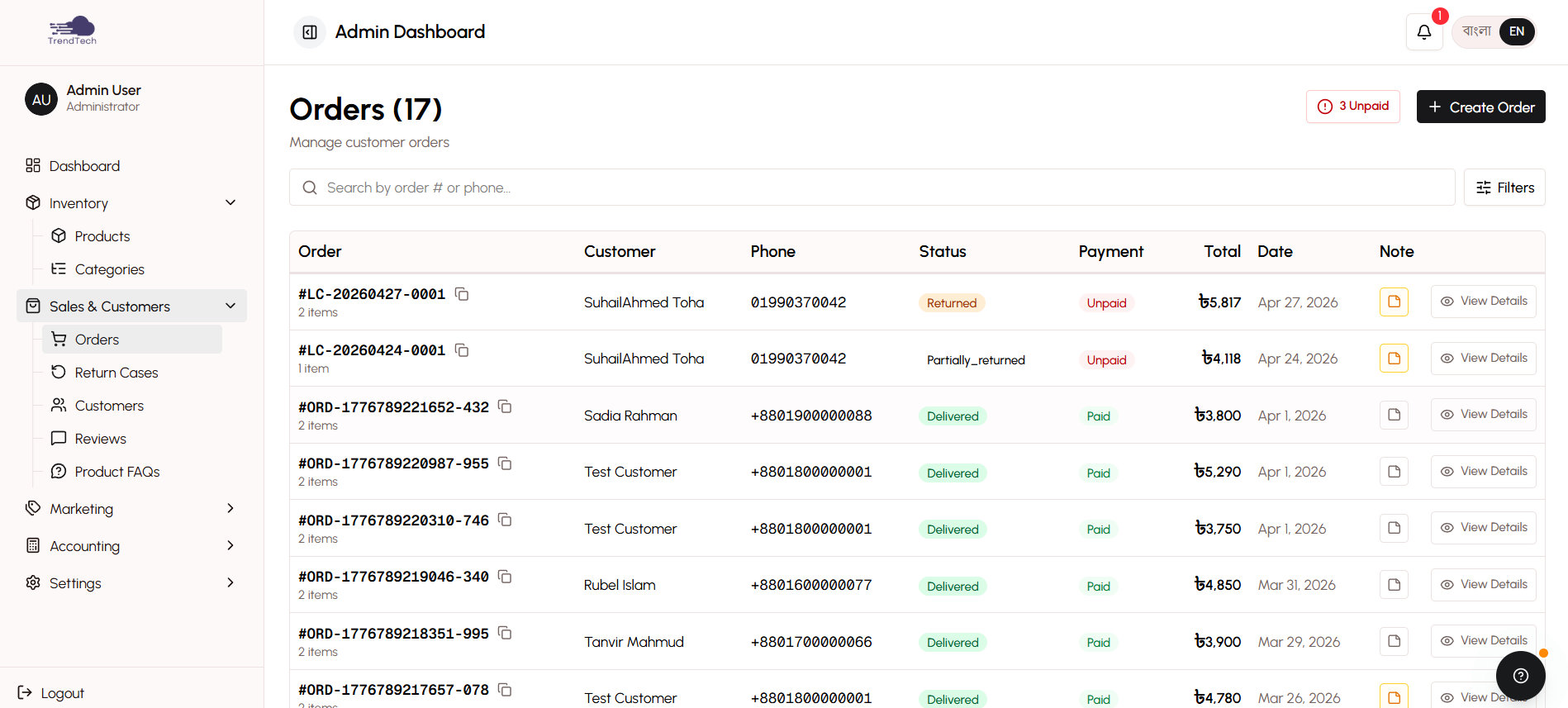
The order list displays all orders in a sortable, filterable table that gives you a complete overview of your business activity.
Filtering and Search
Find orders quickly using multiple filter options:
- Status Filter - View orders by status (Pending, Confirmed, Shipped, Delivered, Cancelled, Returned)
- Payment Status - Filter by paid or unpaid orders
- Date Range - View orders from specific time periods
- Customer Search - Find orders by customer name or phone number
- Order ID Search - Look up specific orders by their unique identifier
- Payment Method - Filter by bKash, Nagad, Rocket, or COD
Order Information Display
Each order row shows essential information at a glance:
- Order ID and date
- Customer name and phone
- Total amount
- Payment status and method
- Order status
- Quick action buttons
Sorting
Click column headers to sort orders by date, amount, status, or customer name. This helps you prioritize which orders to process first.
Unpaid Orders Queue
The unpaid orders queue is a dedicated view for managing orders that require payment verification. This is where you'll spend most of your time when processing manual payments.
How It Works
When customers place orders using bKash, Nagad, or Rocket, their orders appear in the unpaid queue. The customer receives payment instructions and submits their transaction ID through the order tracking page.
Verification Process
- Review Order Details - Check the order items, amount, and customer information
- Check Transaction ID - The customer's submitted transaction ID appears prominently
- Verify Payment - Check your mobile wallet to confirm you received the payment
- Match Amount - Ensure the received amount matches the order total
- Mark as Paid - Click the "Mark as Paid" button to confirm payment
- Confirm Order - The order automatically moves to Confirmed status
Transaction ID Display
The system displays the customer's transaction ID in a clear, copyable format. You can easily copy it to check your mobile wallet transaction history.
Handling Issues
If there's a problem with the payment:
- Wrong Amount - Contact the customer to resolve the discrepancy
- No Payment Received - Reach out to the customer for clarification
- Duplicate Transaction ID - The system warns you if a transaction ID has been used before
You can add admin notes to document any issues or communications with the customer.
Order Detail View
Click any order to see complete information about the purchase, customer, and fulfillment status.
Order Information
- Order ID and placement date
- Current status with status history timeline
- Payment method and payment status
- Transaction ID (for manual payments)
- Total amount breakdown (subtotal, delivery fee, discount)
Customer Information
- Customer name and phone number
- Email address (if provided)
- Complete shipping address (formatted for Bangladesh)
- Customer notes or special instructions
Product Details
- List of all ordered items
- Product names with variant information (color, size, etc.)
- Quantity and unit price for each item
- Frozen cost price (for profitability tracking)
- Subtotal for each line item
Status Timeline
A visual timeline shows the order's journey through each status, with timestamps for when each transition occurred. This helps you and your customers understand exactly where the order is in the fulfillment process.
Status Management
Orders move through a defined workflow from placement to completion. You control these transitions based on your fulfillment progress.
Status Transitions
Pending → Confirmed
- Verify payment has been received
- Confirm you can fulfill the order
- Click "Confirm Order" button
Confirmed → Shipped
- Package the order
- Hand off to courier or send via Steadfast integration
- Click "Mark as Shipped" button
- Optionally add tracking information
Shipped → Delivered
- Wait for courier confirmation of delivery
- Or manually mark as delivered when you confirm delivery
- Click "Mark as Delivered" button
Any Status → Cancelled
- Use when order cannot be fulfilled
- Inventory is automatically restored
- Accounting entries are reversed
Delivered → Returned
- Use the Resolution system for returns (see Return & Resolution documentation)
- Don't manually change status to Returned
Status Change Confirmations
The system asks for confirmation before changing status to prevent accidental updates. Some status changes also require additional information (like tracking codes for shipped orders).
Payment Verification
For orders using manual payment methods (bKash, Nagad, Rocket), you must verify payment before confirming the order.
Verification Steps
- Open the order from the unpaid queue
- Note the transaction ID provided by the customer
- Check your mobile wallet transaction history
- Confirm the amount matches
- Click "Mark as Paid"
Payment Status Indicators
- Unpaid - Red indicator, order awaits payment verification
- Paid - Green indicator, payment confirmed
- COD - Blue indicator, payment will be collected on delivery
Manual Order Creation
Create orders directly from the admin panel for sales that happen over phone, WhatsApp, or in person.
When to Use Manual Orders
- Customer calls to place an order
- WhatsApp or Facebook Messenger sales
- In-person sales at pop-up shops or markets
- Bulk orders from corporate clients
Creating Manual Orders
- Click "Create Order" button
- Search for existing customer or enter new customer details
- Add products to the order (search by name or SKU)
- Select variants and quantities
- Enter shipping address
- Choose payment method
- Add any special notes
- Submit the order
Manual orders follow the same workflow as online orders, appearing in your order list and unpaid queue (if payment verification is needed).
Courier Integration Actions
DokanGo integrates with Steadfast courier service to streamline delivery management. These actions are available from the order detail page.
Send to Steadfast
Create a consignment in the Steadfast system directly from DokanGo:
- Click "Send to Steadfast" button
- Review pre-filled information (customer details, amount, products)
- Adjust delivery instructions if needed
- Submit to create consignment
- Tracking code is automatically saved to the order
Sync Status
Automatically update the order status based on Steadfast's delivery status:
- Click "Sync Status" button
- System fetches current status from Steadfast
- Order status updates if delivery is confirmed
- Tracking information is refreshed
Fraud Check
Use Steadfast's fraud detection to verify customer legitimacy:
- Click "Fraud Check" button
- System queries Steadfast database
- Results show customer's order history and return rate
- Use information to decide whether to proceed with order
Balance Check
Check your Steadfast account balance without leaving DokanGo:
- Click "Balance Check" button
- Current balance displays
- Helps you ensure sufficient funds for consignment creation
Admin Notes
Add internal notes to orders for communication with your team or to document important information.
Use Cases
- Document customer communications
- Note special handling instructions
- Record payment verification details
- Track follow-up actions needed
- Explain status changes or delays
Notes are only visible to admin users and never shown to customers. Each note includes a timestamp and the admin user who created it.
Best Practices
Verify Payments Promptly - Check the unpaid queue regularly to avoid delays in order fulfillment.
Update Status Accurately - Keep order status current so customers can track their orders effectively.
Use Admin Notes - Document important information for your team, especially for complex orders or issues.
Leverage Courier Integration - Use Steadfast integration to save time and reduce manual data entry.
Create Manual Orders - Don't miss sales opportunities - create orders for phone and WhatsApp customers.
Monitor Pending Orders - Follow up on pending orders that haven't been paid within 24-48 hours.
Communicate with Customers - Use the customer's phone number to send updates via WhatsApp or SMS.
Related Topics
- Order Management - Learn about order lifecycle and statuses
- Payment System - Understand payment workflows
- Courier Integration - Learn about delivery management
- Order Fulfillment - See the complete fulfillment workflow